Notes
Put a reminder, team meeting or announcement in the calendar, without a patient or appointment type.Overview
A note puts text at a time in the calendar: a reminder, a team meeting, an afternoon off or an announcement for colleagues. A note has no patient, appointment type or billing.
Notes are yellow by default, like a sticky note. You read their text right on the calendar, with formatting such as bold, italic and lists.
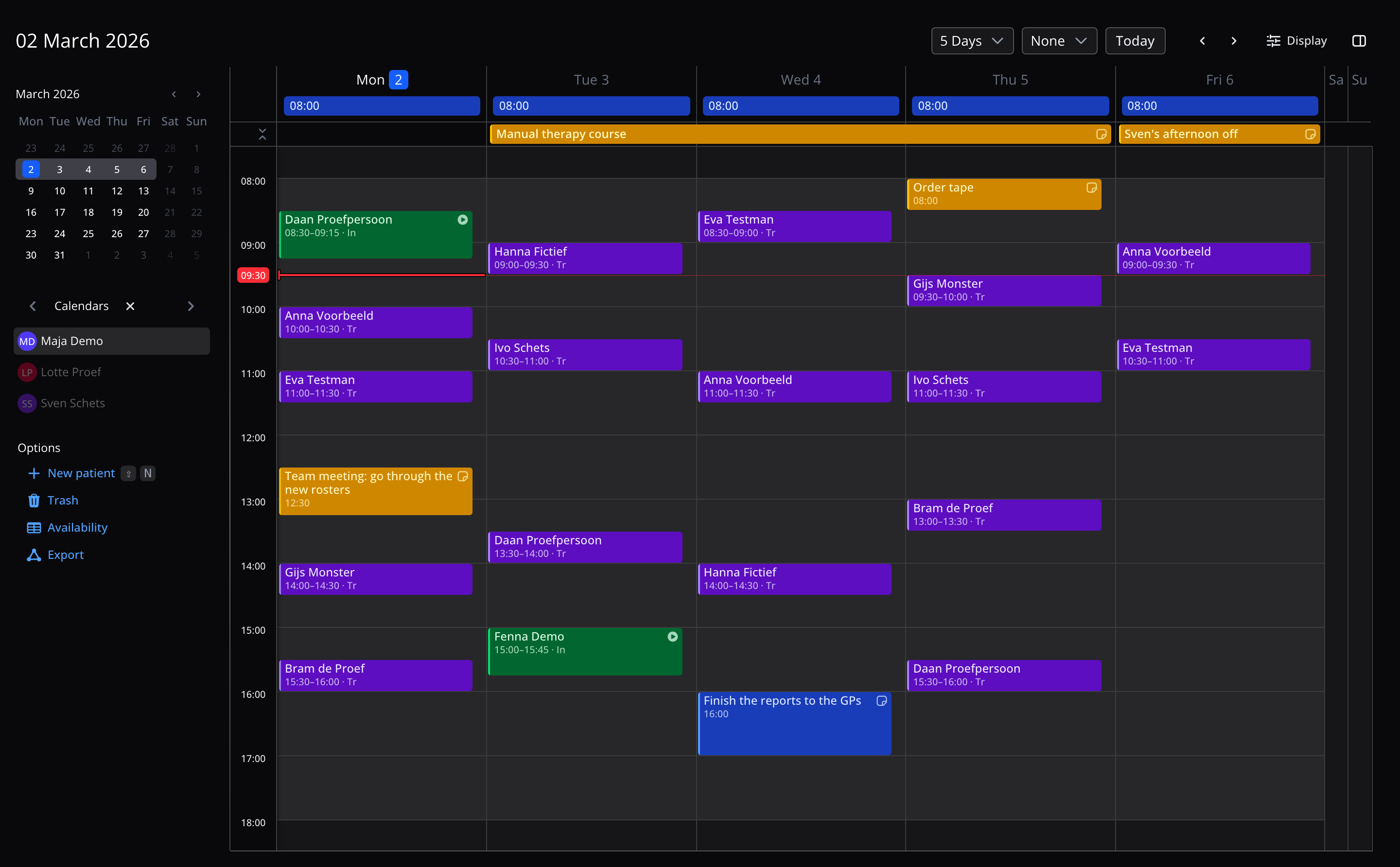
Create a note
- Click or drag in the calendar where the note should go, as for a new appointment. The note goes in that column's calendar.
- Click 'Appointment' at the top of the card and choose 'Note'.
- Type your note where it says 'Jot it down...'.
- Change the time or date if needed, or turn on 'All day'.
- Close the card. The note is saved.
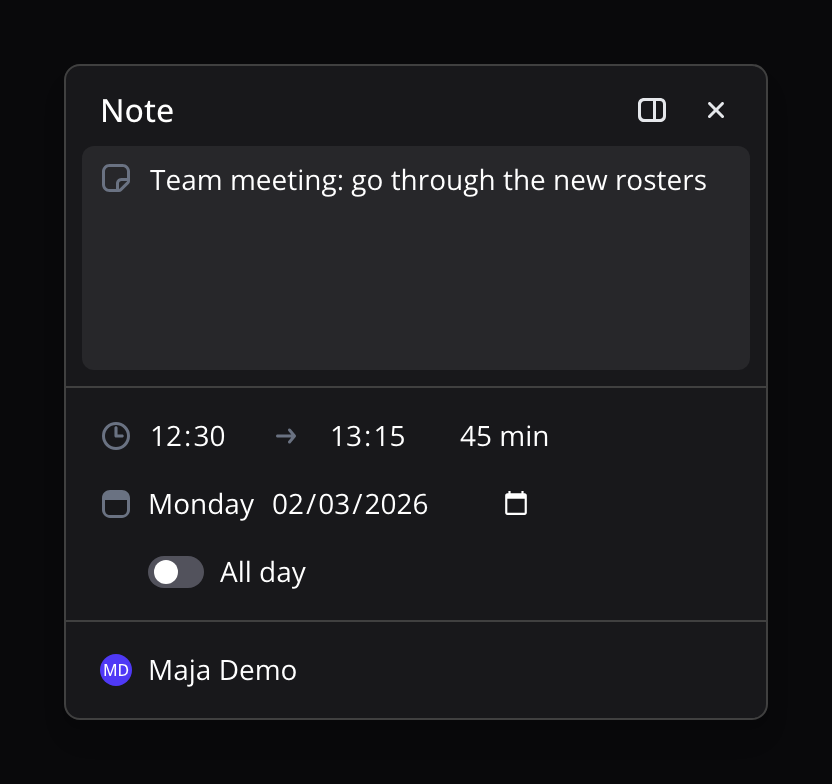
You can also save with ⌘ + ↩︎. On Windows or Linux, use Ctrl instead of ⌘.
Faster: hold your pointer over the spot in the calendar and press N. The card opens as a note, ready for typing.
Need more room? Click 'All details' and keep writing in the side panel.
All day or several days
For a course, a holiday or another whole day, turn on 'All day' and choose the first and last day. The note then sits in the bar above the calendar.

You can also start in that bar: click an empty day, or drag across several days. This works in the Day view, and in the Week view while you look at one calendar.
Change a note
Click a note to open it. You change its text, time, date and 'All day' in the same card. Your changes are saved when you close the card: with the cross, with Esc or by clicking elsewhere in the calendar.
Moving a note and changing its length work as for appointments:
- Drag the note to another time or day.
- Drag its bottom edge to make the note longer or shorter.
- In the Day view, drag the note to a colleague's column to move the note to their calendar.
- Drag a note in the bar above the calendar to other days, or drag its edges to add or remove days.
On your colleagues' calendars
The card shows which calendars the note is on, one row per colleague.
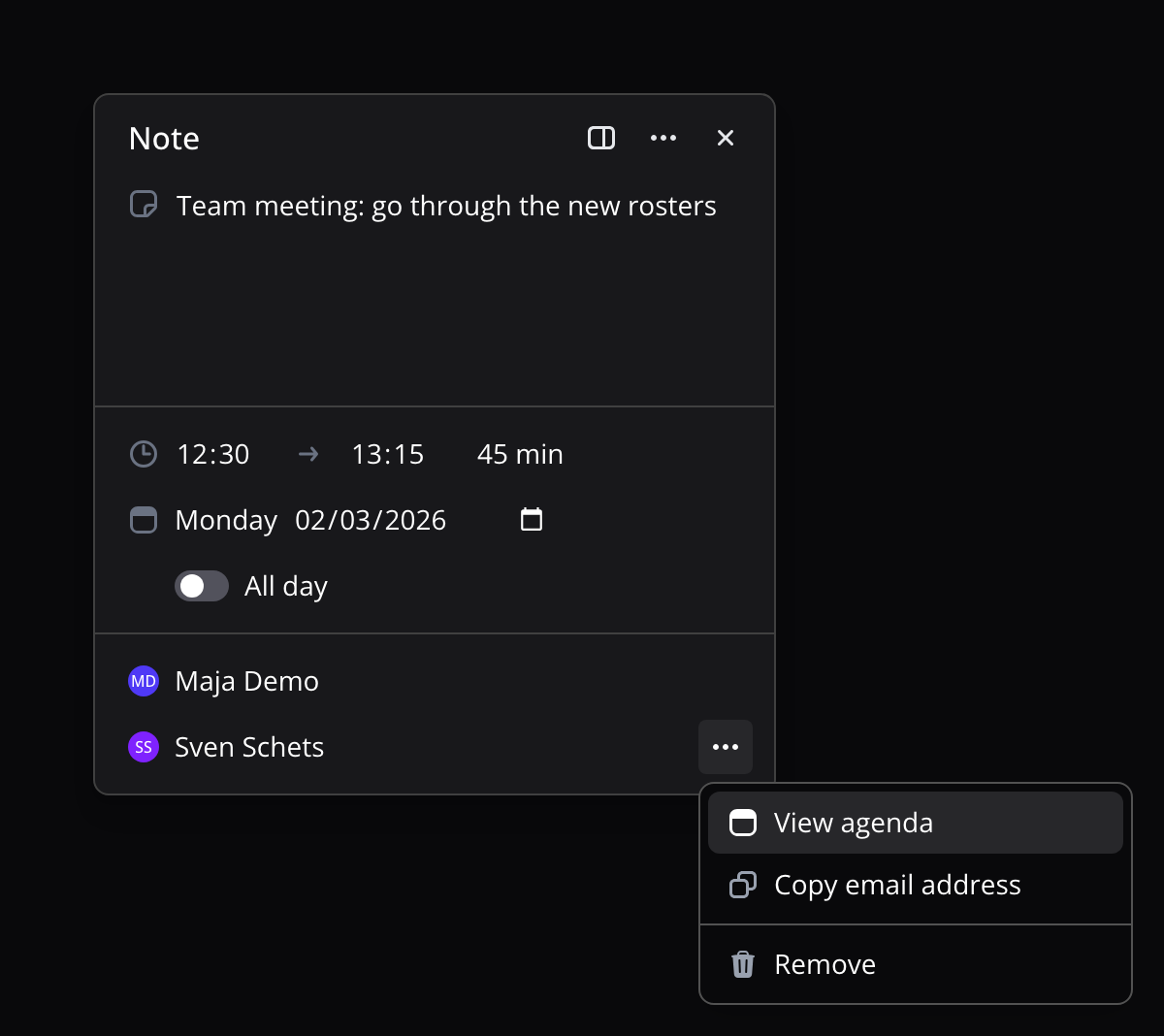
- Hover over the first row and click 'Add user' to put the note on a colleague's calendar too. Useful for a team meeting or an announcement for several colleagues.
- Click a name to move the note to another colleague's calendar.
- The ⋯ menu next to a colleague offers 'View agenda', 'Copy email address' and 'Delete'. 'Delete' takes the note off that calendar. A note is always on at least one calendar.
Color
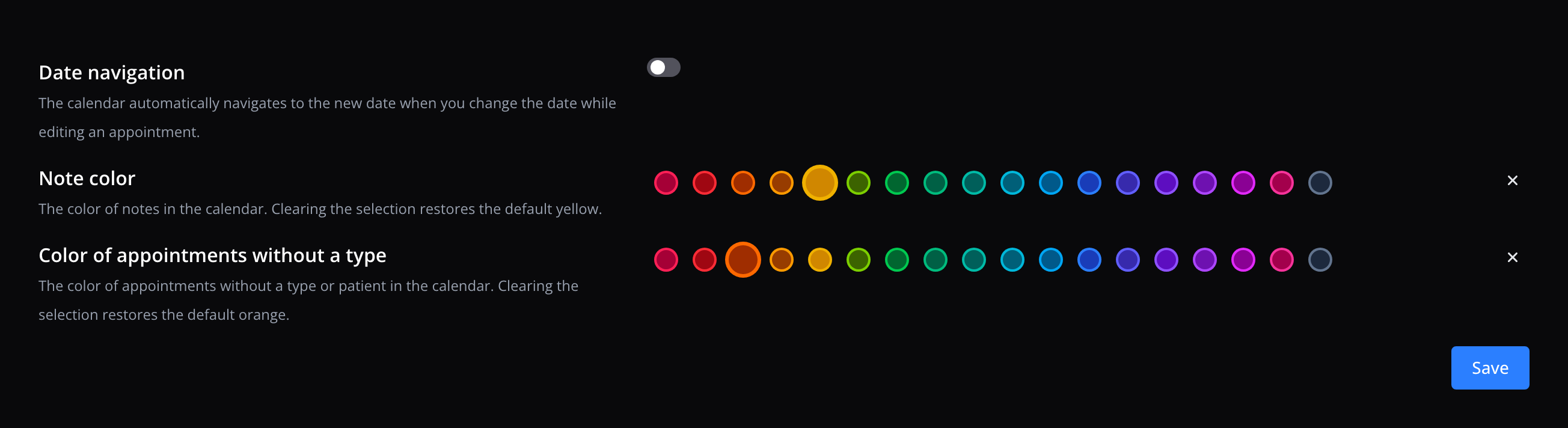
Everyone sees notes in their own note color, yellow by default. You choose yours in Settings → User → Calendar, at Note color. Then click 'Save'.
Should one note stand out? Open the card's ⋯ menu, go to 'Color' and pick one of the eight colors. Everyone sees that color. The check mark shows the color the note has now.
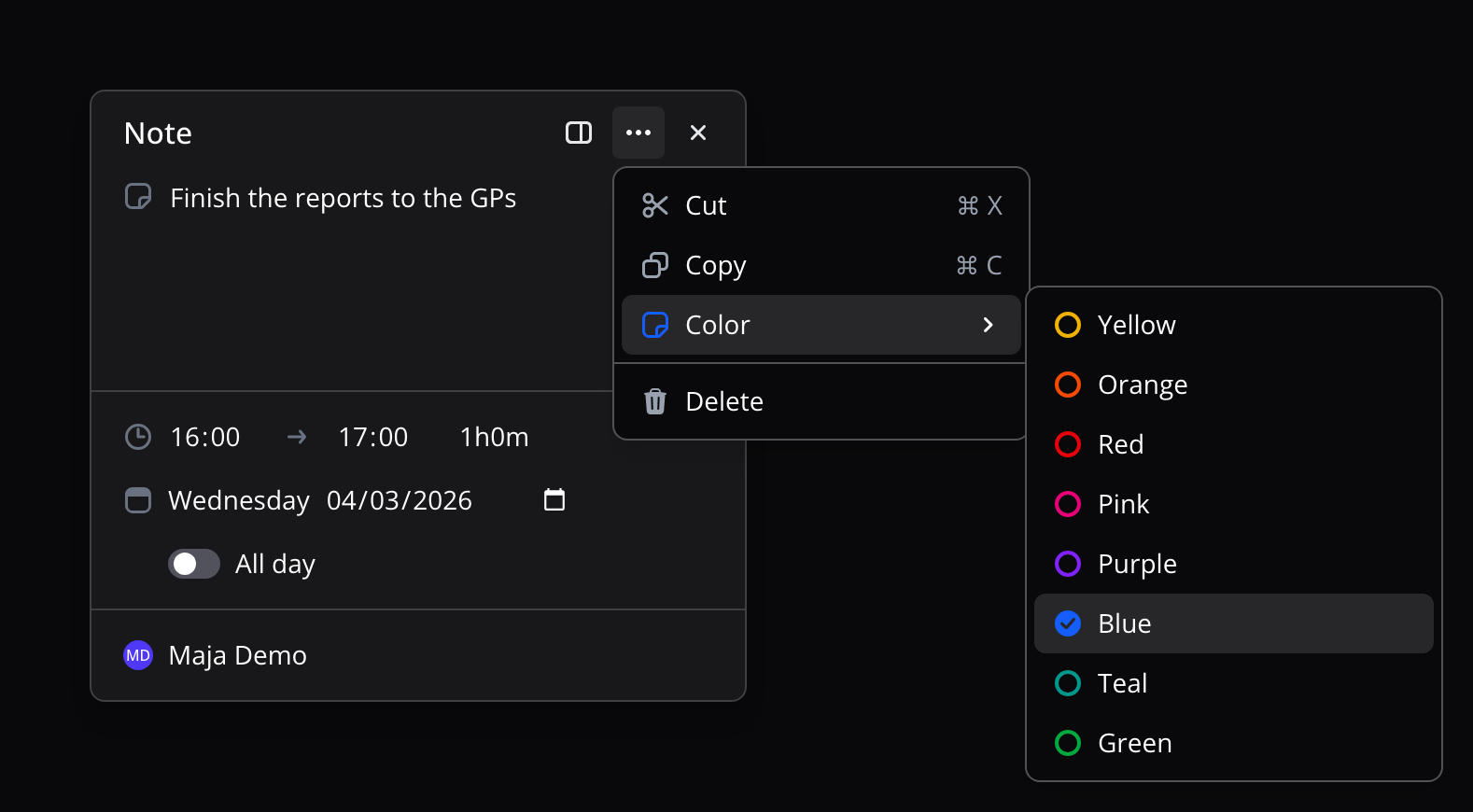
In Flux, appointments without a type or patient used to be called notes too. You now set their color at Color of appointments without a type, on the same page.
Cut, copy and paste
Choose 'Cut' (⌘ + X) or 'Copy' (⌘ + C) in the card's ⋯ menu. Then click an empty spot in the calendar and paste with ⌘ + V. On Windows or Linux, use Ctrl instead of ⌘.
- Copy creates a new note in the new spot.
- Cut moves the note, history included. This is also how you move a note to another week.
The shortcuts also work while you are in the note's text, as long as no text is selected.
Delete and restore
Choose 'Delete' in the card's ⋯ menu. You see the message Note deleted. Click 'Undo' to bring the note back right away.
You can also restore a note later. Deleted notes are in the Trash, in the calendar's left sidebar, under Notes. Open the note and click 'Restore note'.
History
Click 'All details' to open the note in the side panel. Under Activity you see who created, changed, moved, deleted or restored the note, and when.
Good to know
- A note does not block time. Patients can still book an appointment at that time through online scheduling. To keep time free, change your availability.
- Do you export your calendar to Google Calendar or the Calendar app on your Mac? Your notes show there too.
- Notes cannot repeat yet.
Everything about appointments in the calendar is in the Calendar manual.
Frequently asked questions
What is the difference between a note and an appointment without a type?
A note is only text at a time: no patient, type or billing, and no blocked time. An appointment without a type is still an appointment, with everything that comes with it. Do you use appointments without a type as reminders or announcements? A note is now the tool for that.
Can I use a note to block time?
No. A note does not block time, so patients can book an appointment at that time through online scheduling. Change your availability to keep time free.
Does my colleague see a note in my calendar?
Yes. Anyone who views your calendar in Flux sees your notes. When you put a note on a colleague's calendar too, the note shows on both calendars.