Calendar
In the calendar you schedule and edit appointments, and see at a glance who is coming and what is still missing.Overview
In the calendar you schedule appointments and see who is coming today. Every appointment is a block in the schedule. Click it and the appointment card opens: you edit the appointment right there, and as soon as you click away everything is saved.
Open the calendar through Calendar in the menu, or with G A. You decide how the calendar looks. Under Display above the calendar you choose what you want to see now, on this device. Your calendar settings decide how the calendar opens by default, on every device.
Schedule an appointment
Click an empty spot in the calendar, or drag from the start time to the end time. The appointment card opens straight away, with the time filled in. Choose the patient, the practitioner if there isn't one yet, the appointment type and the location, and click away. The appointment is in the calendar, with the status Booked.
If the patient comes back regularly, set how often under Repeat before you close the card. This isn't available for a first-consultation appointment type.
The appointment card
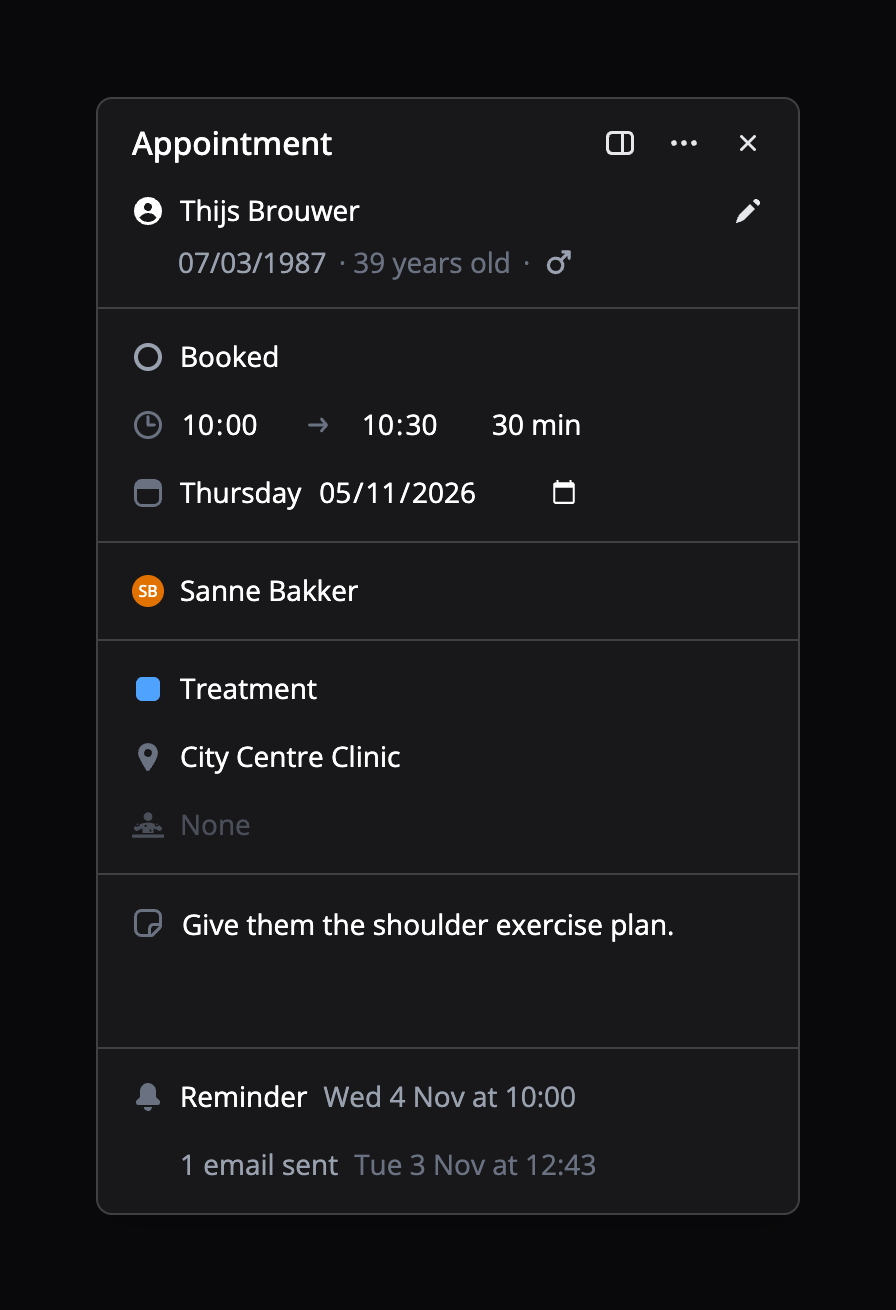
Click an appointment and the card opens next to it. You read it from top to bottom: the patient with their date of birth and age, the status, the time with the duration, the date, the practitioner, the appointment type, the location, the treatment process and your note. At the bottom are the reminder and the emails the patient gets.
You edit every row directly: click it and choose or type what you need. The pencil next to the patient lets you pick another patient. Choose the duration next to the end time, and the end time moves with it.
The card opens like this when the side panel on the right is collapsed. When the side panel is open, an appointment opens there, with all its details. See All details.
Saving happens on its own
When you're done, click anywhere else in the calendar, press Esc or click the cross to close it. The card disappears at once and Flux saves in the background, without you waiting for a loading spinner. That way you plan one appointment after another.
Nothing gets lost along the way. If a save ever fails, Flux tells you and you choose whether to try again or discard your changes. If the appointment has no practitioner yet, you see the notice No practitioner, and when you close the card Flux asks whether you want to add one or not save the appointment. Changed something you didn't mean to? Choose 'Undo changes' in the ⋯ menu before you close the card.
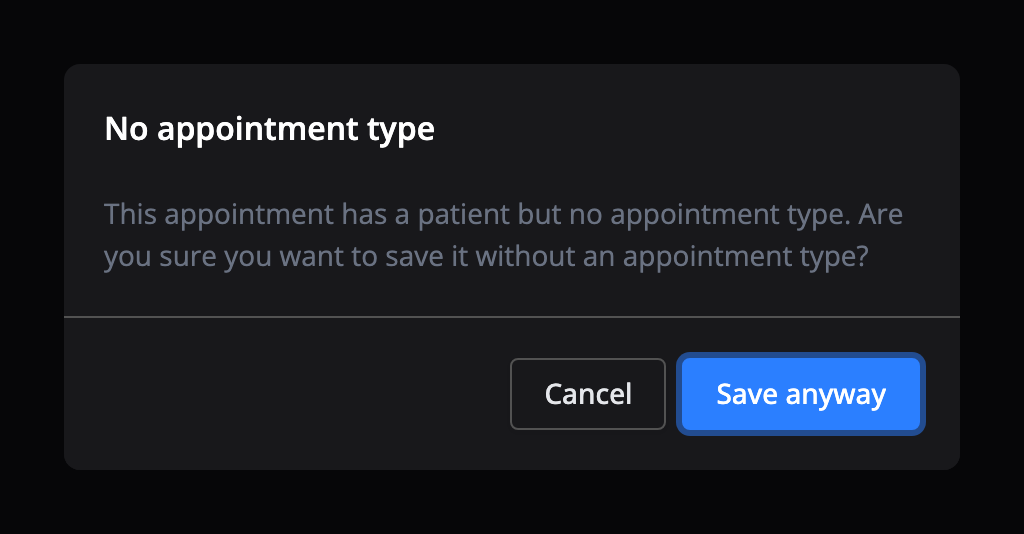
An appointment with a patient but no appointment type is allowed. When you save one, Flux asks if you are sure. Choose 'Save anyway' to go ahead.
Notices
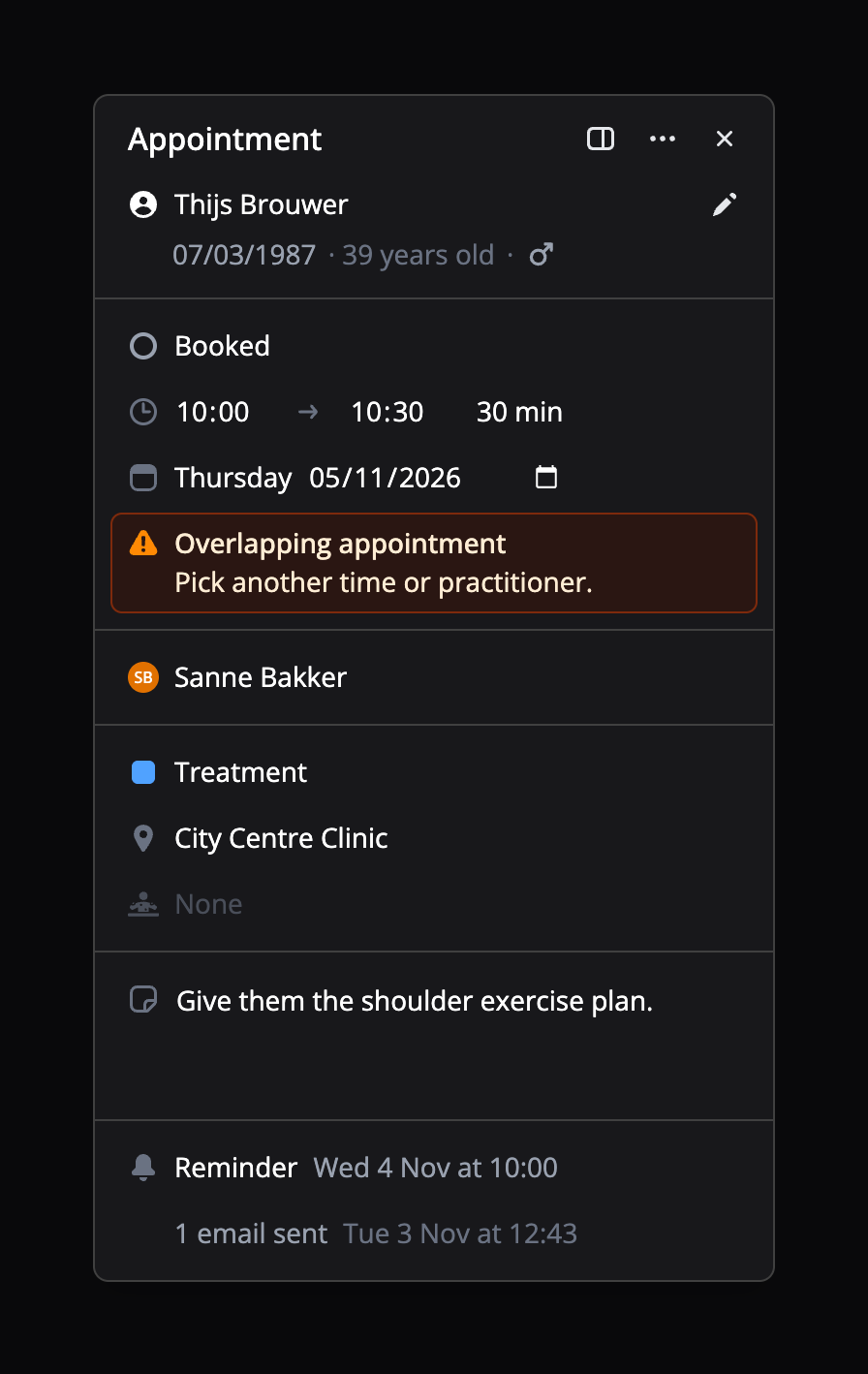
While you plan, the card keeps an eye on whether the appointment fits. If something is off, a notice appears under the row it's about, and it tells you what you can do about it. That way you sort it out before the patient is at the desk.
You see a notice when the appointment overlaps another appointment, when the practitioner isn't available at that time or location, or when the appointment type doesn't fit the location, the practitioner or the patient's age. Also when the patient already has an appointment that day, when one of the patient's labels has a warning, or when the claim still needs a responsible practitioner with an AGB code.
In the card, a notice doesn't stop you. If the appointment is right after all, for example a deliberate double booking, just click away.
Recurring appointments
If an appointment is part of a series, the card shows how often it repeats, for example 'Repeats every week'. The arrows next to it take you to the previous or next appointment in the series. That isn't possible while you have unsaved changes.
Open the row to see the dates in the series. There you can also add appointments to the series with 'Add appointments'. When you change an appointment in a series, Flux asks on saving whether it's 'Only this appointment' or 'This and following appointments'.
Reminder and emails
At the bottom of the card you see which emails the patient gets and when, such as the reminder. Don't need the reminder? Switch it off with the cross, and back on with the plus. Emails that have already been sent share one row. Hover over it to see what the patient has already received.
If the patient has no email address, you see No email address. Add one to the patient to be able to send emails.
The ⋯ menu
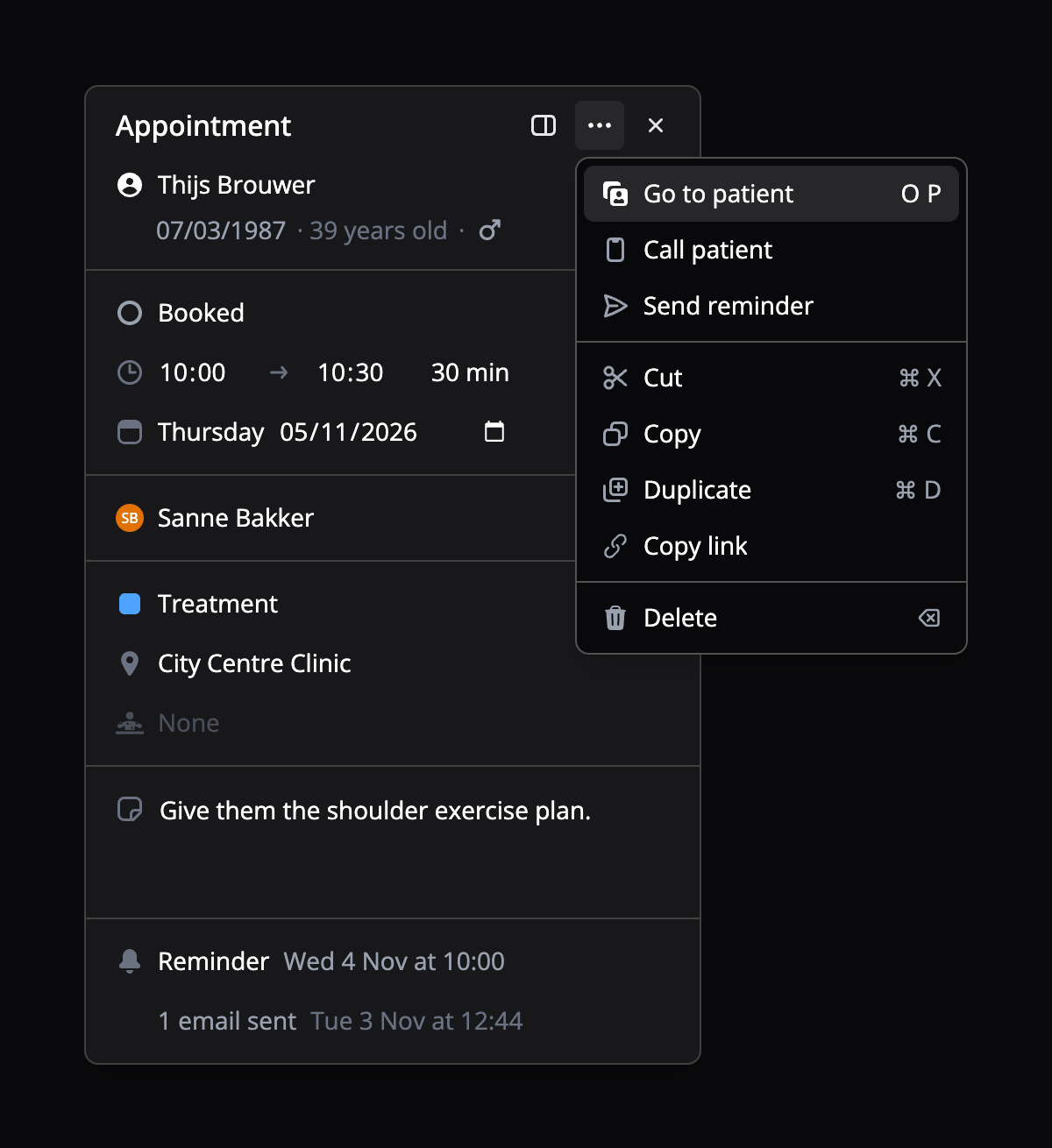
The ⋯ menu at the top right of the card holds what else you can do with the appointment:
- 'Go to patient' (O P) and 'Call patient'.
- 'Send reminder', to send the patient a reminder now.
- 'Cut' (⌘ + X), 'Copy' (⌘ + C) and 'Duplicate' (⌘ + D). On Windows or Linux, use Ctrl instead of ⌘.
- 'Copy link', to send a colleague straight to this appointment.
- 'Delete' (Backspace) and, for a series, 'Delete recurring appointments'.
All details
Want to see more? Click the panel icon at the top right of the card, 'All details'. The appointment then opens in the side panel on the right, with everything that doesn't fit in the card: the patient's insurance or package, the activity on the appointment, the address for a house call and the questionnaire. For an appointment without a patient you also choose there whether it's 'Public' or 'Private'. In the side panel you save with the button at the bottom.
An appointment you aren't allowed to change opens in the same card, but locked. The top says why, for example because the appointment is tied to a package or has been deleted. Of someone else's private appointment you only see the time and date.
Choose a view
Above the calendar you choose the view. Day shows one day, with a column for each selected user. When you select many users, the columns stay wide enough to read and the calendar scrolls sideways. 5 Days, Week and 2 Weeks put several days side by side. In Continuous you scroll sideways through the days, without paging week by week; the day header with week numbers stays at the top. Day per week shows the same weekday in consecutive weeks. There are also Schedule and Appointment proposals.
Previous and next move a day, a week or a range of days. Today, or T, takes you back to today.
Read the appointments in the schedule
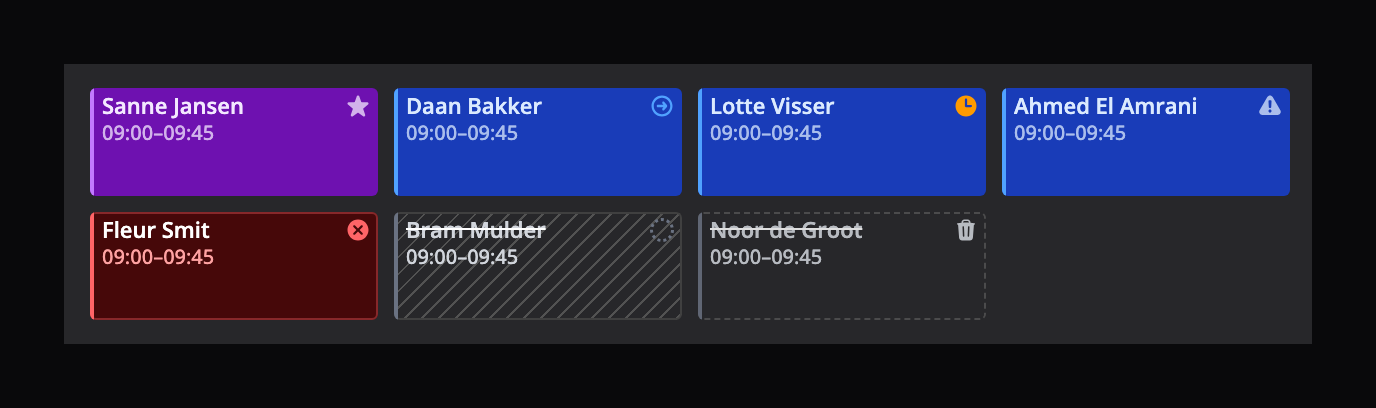
The patient's name sits at the top of an appointment, with the time below it. A narrow bar on the left shows the appointment's colour. A short appointment fits on a single line.
Once an appointment has moved past Booked, its status icon shows in the top right. Arrived means the patient is here, Fulfilled that the appointment has taken place. When a patient calls to say they'll be late, set the status Running late so everyone sees it in the calendar. A no-show is red, a cancelled appointment is hatched with a struck-through name, and a deleted appointment has a dashed outline and a struck-through name. Deleted, cancelled and no-show appointments only show when you turn them on under Display.
A star means this is the patient's first appointment, so the front desk can give that patient extra attention. A warning triangle means something is missing. Hover over the icon to see what, for example No appointment type selected.
In the Week and 2 Weeks views the columns are narrow. An appointment then keeps the status icon, the time and the markers in view first. The name is left out when there is no room for it.
Collapse the sidebars
To the left of the calendar are the mini calendar and the users. Collapse or expand them with the arrow at the left of the header, or with [. On the right is the side panel with the appointment details, the waitlist and the shortcuts. Collapse or expand it with the arrow at the right of the header, or with ]. These shortcuts don't work while you are typing in a text field.
Collapse both and the calendar fills the whole screen, and an appointment opens as a card next to the schedule. Flux remembers your choice on this device.
Adjust the display
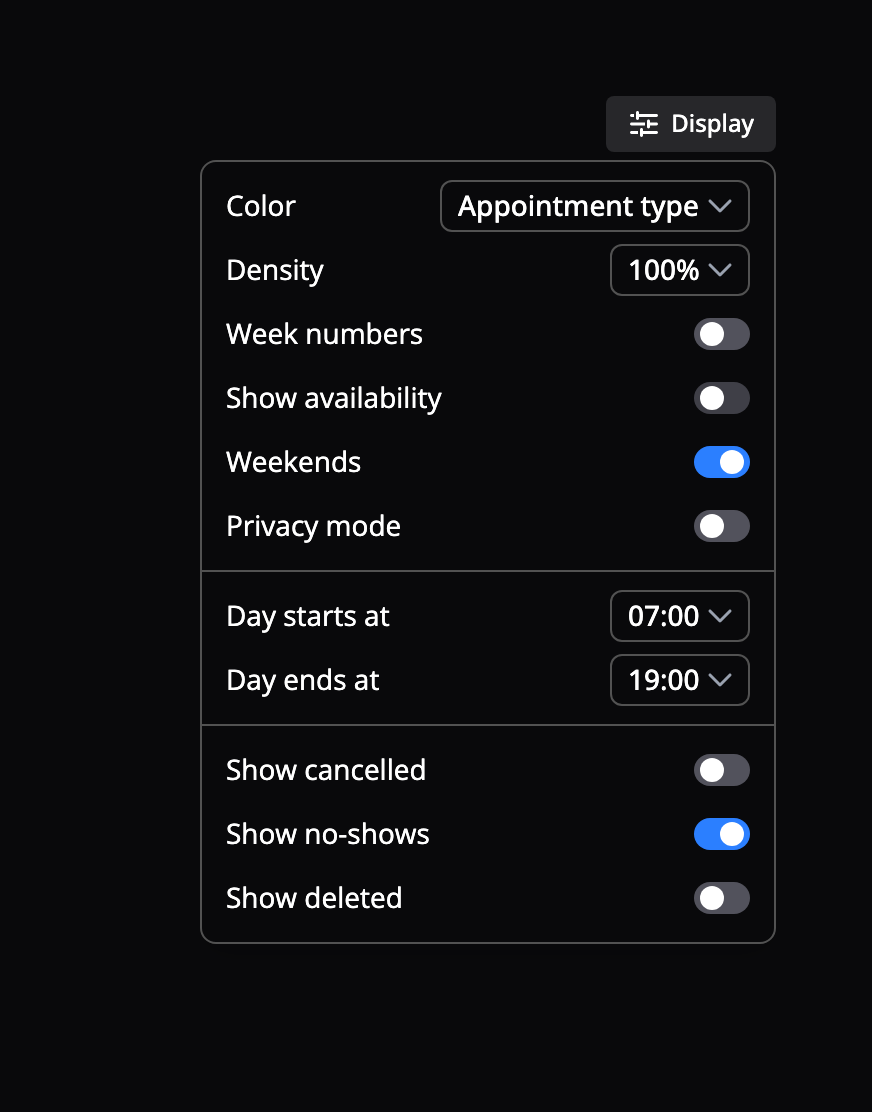
Click Display above the calendar. What you choose here applies on this device.
- Color: colour the appointments by appointment type, location or user.
- Density: make the schedule shorter, so more hours fit on screen.
- Week numbers: show the week number with the date.
- Show availability: show the available times and locations above the columns. This works only in the Day view or with one user selected.
- Weekends: show or hide Saturday and Sunday in the Week, 2 Weeks and 5 Days views.
- Privacy mode: hide patient names in the calendar.
- Day starts at and Day ends at: the hours the calendar shows.
- Show cancelled, Show no-shows and Show deleted.
Hide weekends
Turn Weekends off and the calendar shows Monday to Friday only. If a hidden weekend does hold appointments, a narrow column shows how many. Click it to show the weekend until you move to another date.
In the 5 Days view with weekends hidden, you count five working days. Start on a Wednesday and you see Wednesday, Thursday, Friday, Monday and Tuesday.
Privacy mode
When a patient can see your screen, turn on privacy mode, under Display or with P. An appointment then shows the appointment type instead of the patient's name, without the birthday, the description and the first-appointment star. An appointment without an appointment type then reads Appointment.
High contrast
If the lines and edges in the calendar are hard to see, go to Settings → User → Display, turn on High contrast and click Save. Grid lines, off-hours shading, column headers, free slots, appointments, location strips and the current-time line then become easier to see. Only the calendar changes; the sidebars and the rest of Flux stay as they are. The setting applies on this device.
Your calendar settings
Go to Settings → User → Calendar. What you set here decides how the calendar opens, on every device. Among other things:
- Default day view and First day of the week.
- Start on today: the view starts on the day you selected, instead of at the start of its week.
- Weekends and Week numbers.
- Visible hours: the calendar shows only these hours, so you don't scroll past the night. If an appointment falls outside them, the calendar extends so you still see it.
- Grid lines: how often a line is drawn in the calendar, every hour or every 30, 15 or 10 minutes. Lines between whole hours are more subtle.
- User calendar order and Unavailable users.
Week numbers, Weekends and the visible hours can be changed per device under Display. What you choose there wins on that device.
You can find all calendar shortcuts under Shortcuts.