Welcome to Flux: creating your account
Invited to Flux? This is how you create your account and take your first steps.Overview
Welcome to Flux! Your colleagues have invited you to work with them in Flux, and we're glad to have you on board.
Flux brings your working day together in one place. Depending on your role, you'll find your calendar, patient records, clinical notes and claims there, so you spend less time on admin and more time with your patients. Working at several practices? You do all of it with one account.
Your first step is creating your account. It takes about a minute, and your colleague has often prepared your details for you already. This page walks you through it step by step, and explains what to do if something doesn't work.
Are you an owner who wants to invite a colleague yourself? Read Users.
Your account and your user
When you accept an invitation, two things come into play:
- Your account is personal. You log in with it using your own email address and password. The account stays yours, even if you later move to another practice.
- Your user is you within the practice's Flux environment, with your roles, AGB code and calendar. The practice manages your user.
With one account you can work at several practices, with a separate user in each environment. That is why the invitation belongs with your personal email address. Was the invitation sent to your work address? You can still choose your personal email address when you create your account.
Opening the invitation
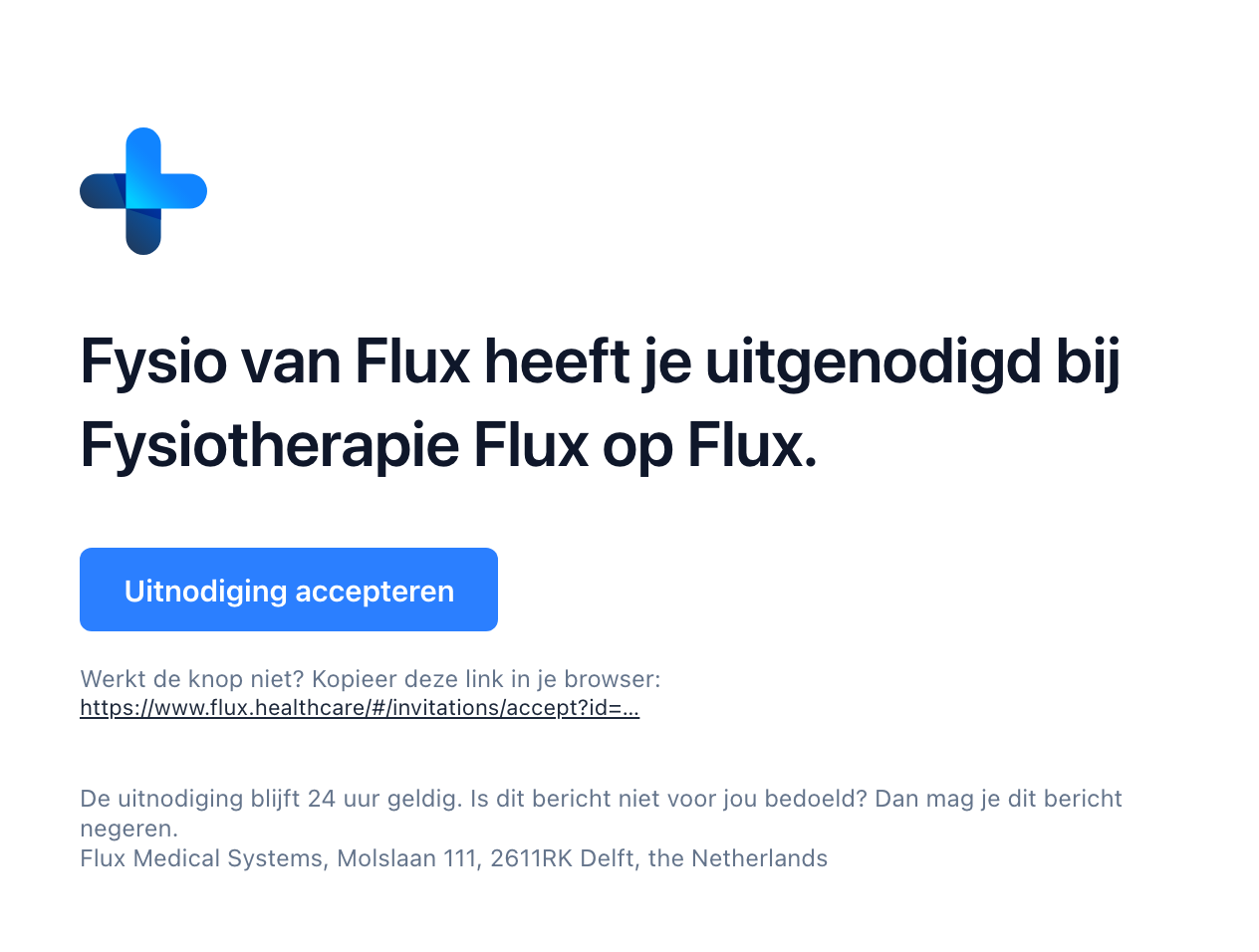
You receive an email from Flux with the name of the colleague who invited you and the name of the practice. Click Uitnodiging accepteren (Accept invitation) in the email. If the button doesn't work, copy the link from the email and paste it into your browser.
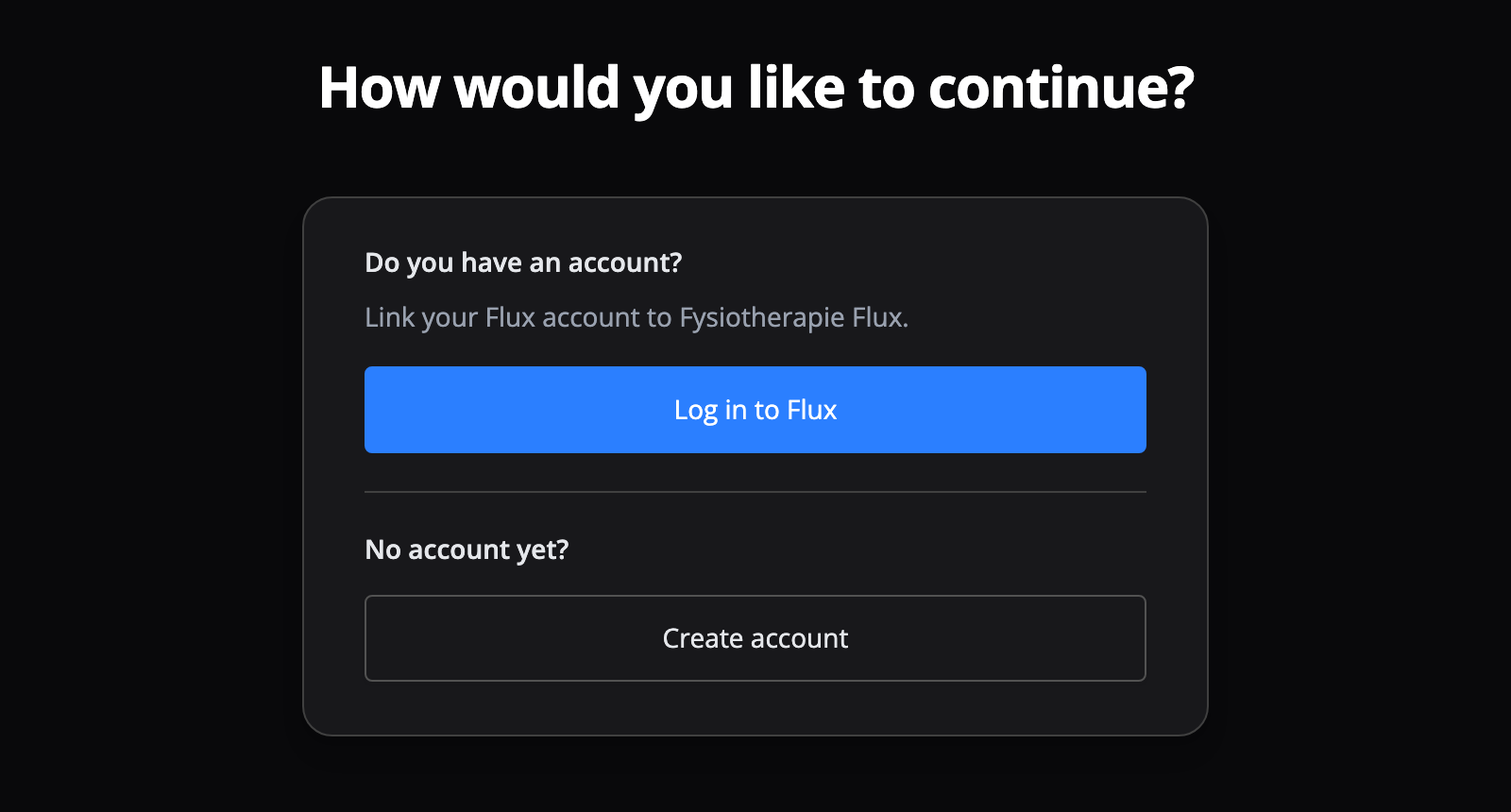
After opening the link, choose how to continue:
- Have an account? Already using Flux, for example at another practice? Click Log in to Flux.
- No account yet? Click Create account.
Creating a new account
Creating your account takes about a minute. Did your colleague fill in details when inviting you? Then they are already filled in. Check them and complete anything that is missing.
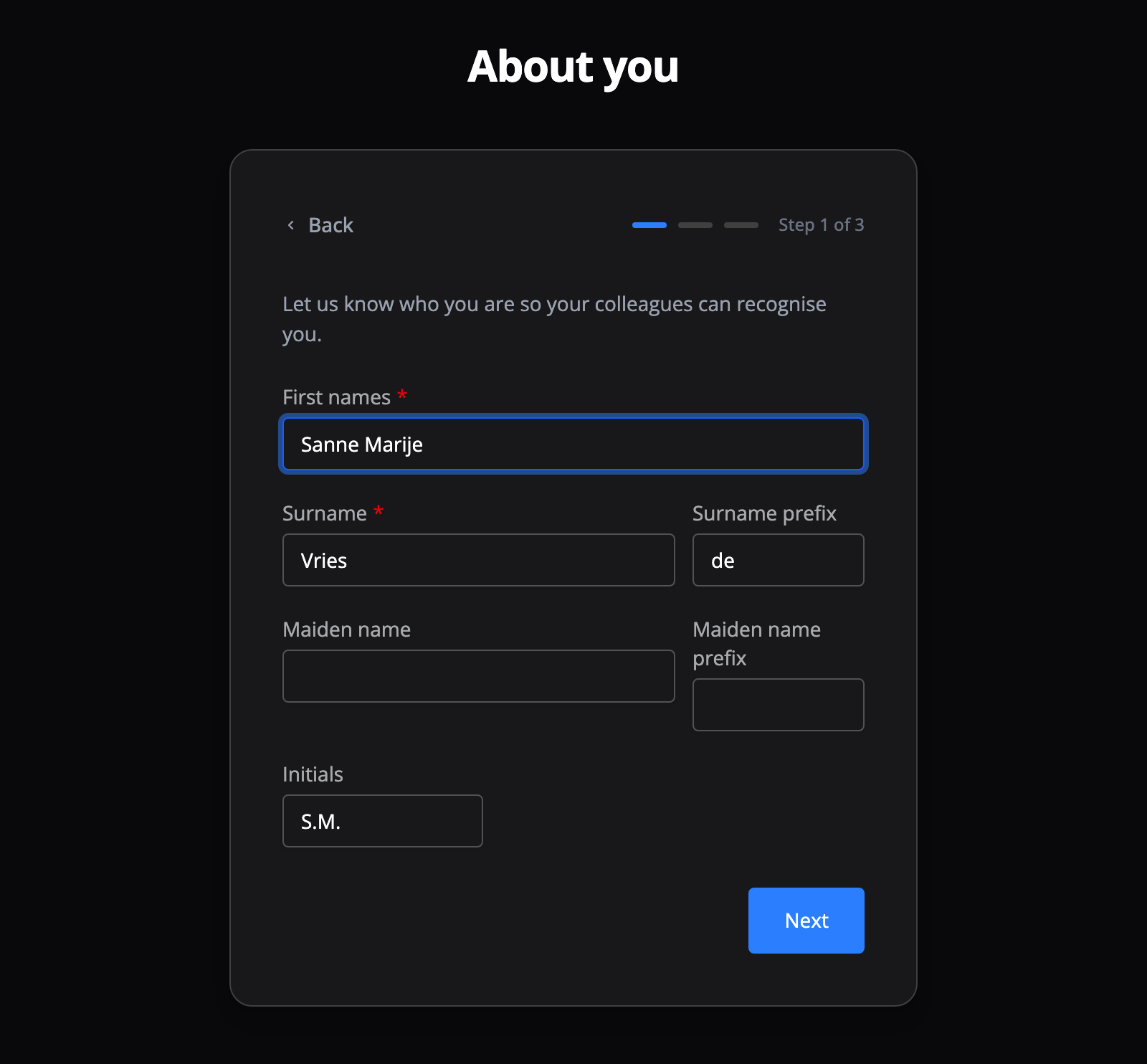
Step 1: About you
Fill in your first names and surname, with a prefix if you have one. This is how your colleagues recognize you in Flux. Maiden name and initials are optional. Then click Next.
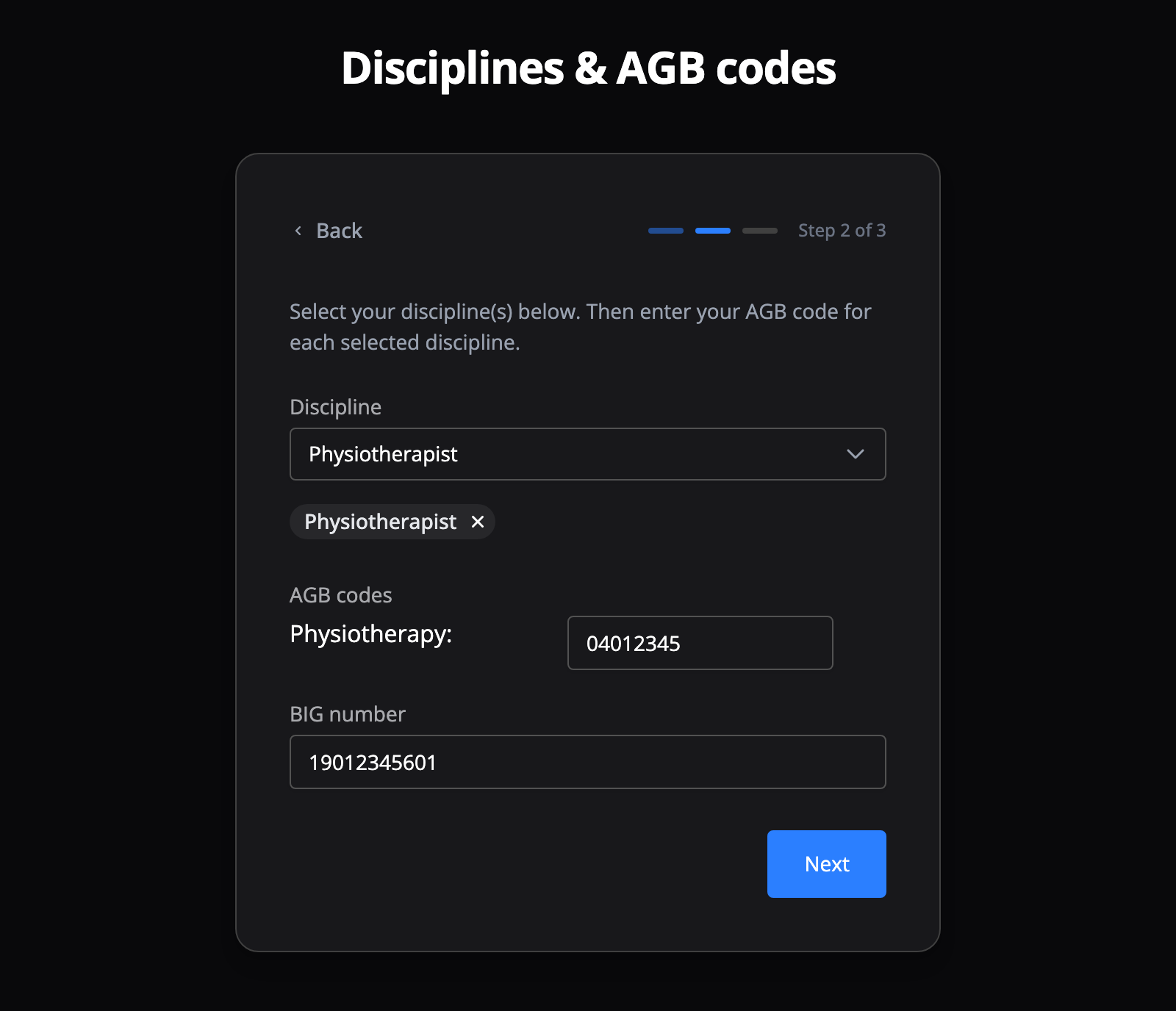
Step 2 (optional): Disciplines & AGB codes
You only see this step if you were invited as a practitioner. Select your discipline(s) and enter your AGB code for each one. Also fill in your BIG number if you have one. Then click Next.
Step 3: Create your Flux account
Choose your personal email address and the password you log in with. This doesn't have to be the address the invitation was sent to. Click Get started! to create your account.
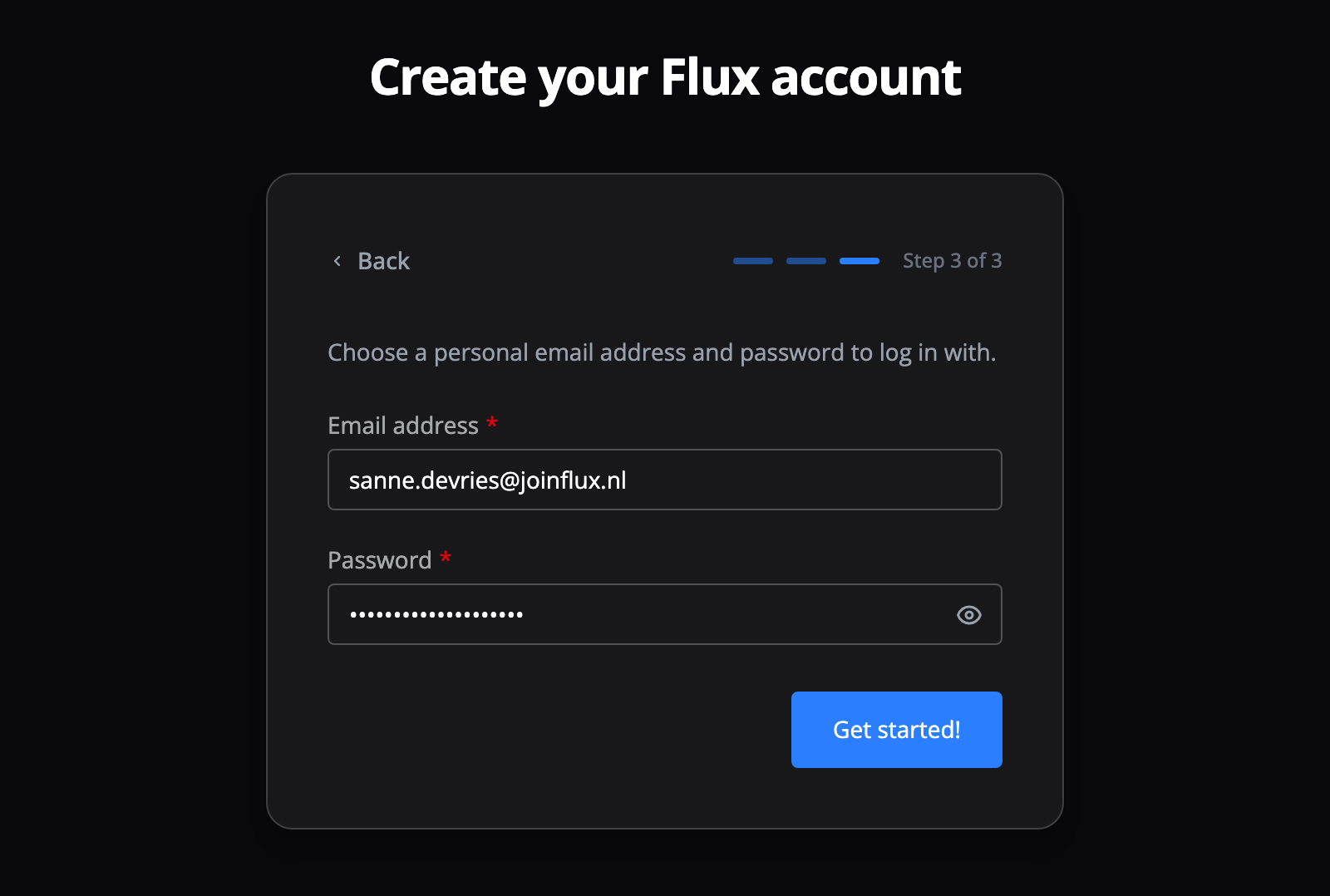
Chose a different email address than the one the invitation was sent to? Then Flux first sends a 6-digit code to that address. Enter the code to confirm your email address. Your account is then ready and you can log in.
Logging in with an existing account
Already have a Flux account? Click Log in to Flux and log in as usual. Already logged in? Then you see the invitation right away. Click Accept invitation to link the practice to your account. Not now skips the invitation.
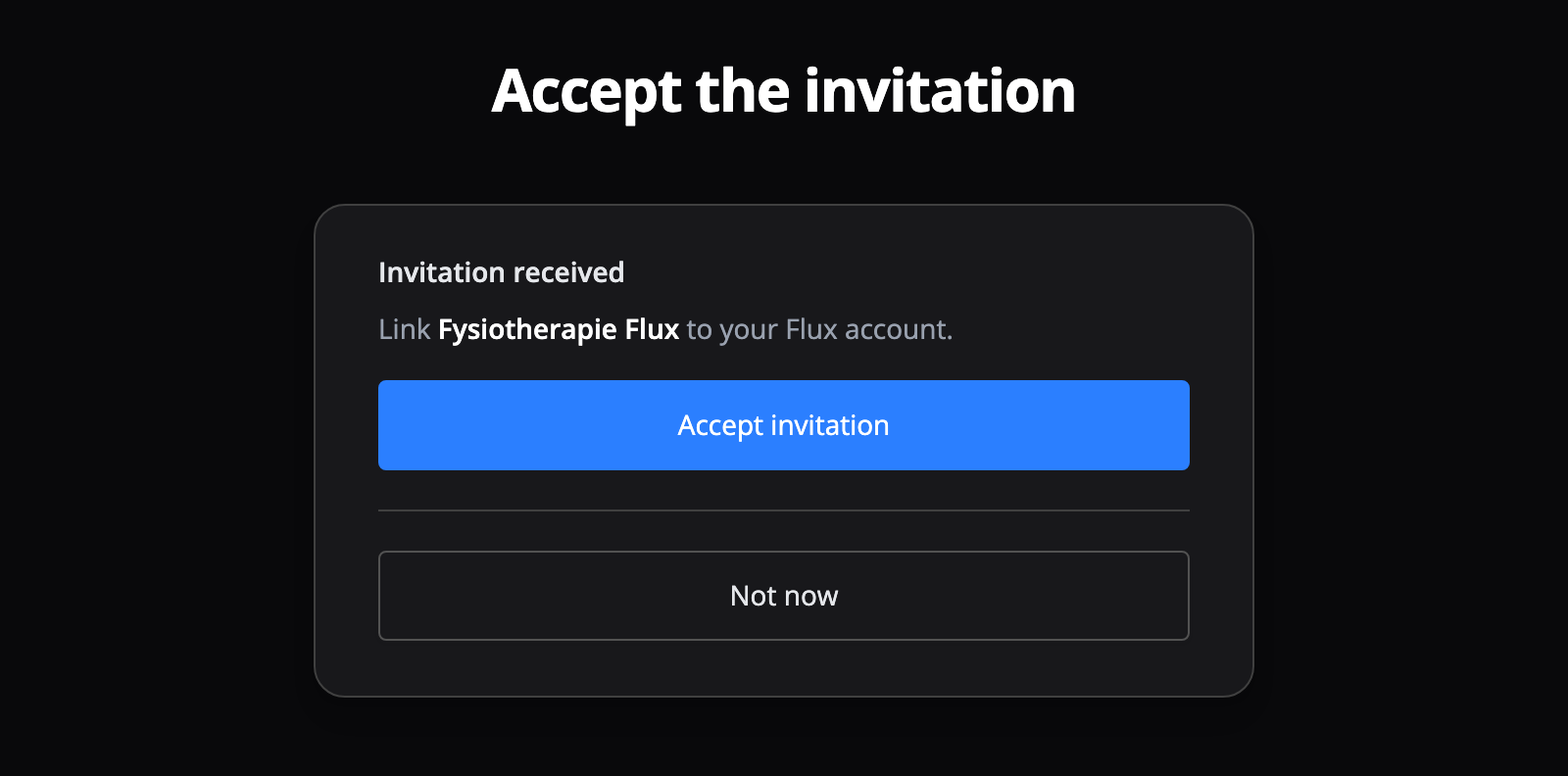
One Flux account gives you access to every Flux environment you have been invited to, so you don't need a new account for each practice.
After accepting
Once you have accepted, you have access to your practice's Flux environment. What you can do there depends on the roles your colleague gave you. Read more about the roles in Users.
Troubleshooting
The page shows "Invalid invitation"
The link from the email no longer works. This happens when:
- the invitation is more than 24 hours old;
- you have already accepted the invitation. In that case, just log in;
- your colleague retracted the invitation;
- your colleague resent the invitation. Only the link in the newest email works.
Ask your colleague to resend the invitation. You'll receive a new email with a new link.
"An account with this email address already exists"
You already have a Flux account with this email address, for example from another practice. Don't create a new account. Click Back until you're at the start, choose Log in to Flux and log in with your existing account. Forgot your password? Use the password reset option on the login screen.
You didn't receive a verification code
The code is sent to the email address you entered in step 3, not to the address the invitation was sent to.
- Check your spam folder too.
- Click Send a new one to receive a new code.
- Made a typo in your email address? Reload the page, fill in the steps again and check your email address.
- Does an account with this email address already exist? Then Flux doesn't send a code. Log in with that account instead.
"This code is incorrect or has expired"
A code is valid for 15 minutes and you can try it at most 5 times. Click Send a new one for a new code, valid for another 15 minutes.
"Please verify your email address before logging in"
Your account was created, but you haven't entered the verification code yet. Open the link from the invitation again and create your account once more with the same email address. You'll receive a new code. This works as long as the invitation is valid.
You're logged in with a different account
Already logged in to Flux, for example with a colleague's account on a shared computer? Then you would link the invitation to that account. Log out first and open the link again. Only accept an invitation with your own account.
"This account already has a user in this organisation"
Your account already has access to this practice, so you don't need to accept the invitation. Let your colleague know the invitation can be retracted.
Your password isn't accepted
A password must be at least 6 characters long. Do you see a message that your password has appeared in a data leak? Then that password was once leaked at another company. Choose a different password.
Your AGB code or BIG number isn't accepted
An AGB code consists of 8 digits and must be registered in the Vektis AGB register. A BIG number consists of 11 digits. Errors about these appear at the top of the last step. Click Back to correct the details.
"Too many requests have been made"
You tried too often in a short time. Wait for the time shown, reload the page and try again. You'll need to fill in the steps again.
You don't see the new practice after accepting
Accepted the invitation while already logged in? Then you first stay in the environment you were working in. Refresh the page, then choose the new practice's environment with the practice icon at the top left.
Frequently asked questions
Stuck on something? Below are answers to frequently asked questions about accepting an invitation.
I work at several practices. Do I need several accounts?
No. With one Flux account you can accept invitations from several practices. For a new invitation, choose Log in to Flux and log in with your existing account.
Can I use a different email address than the one the invitation was sent to?
Yes. When you create your account, you choose the email address you log in with. If you choose a different address, Flux first sends a 6-digit code to that address to confirm it.