Command menu
Quickly find patients and invoices with the command menu.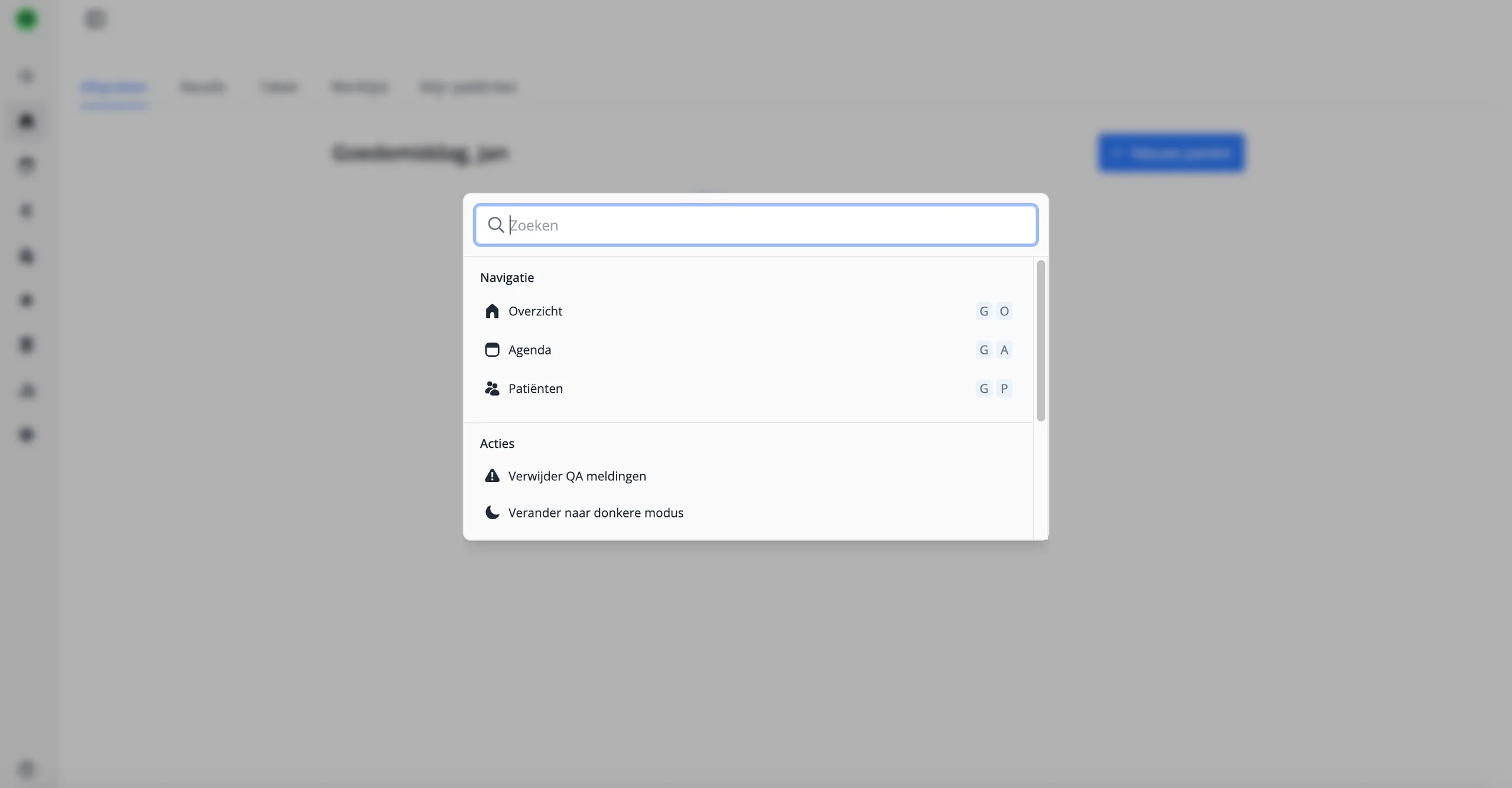
Overview
You can open search from the magnifying glass in the sidebar 🔍. You can also use the shortcut to open and close the command menu:
- Ctrl + K on Windows or Linux
- ⌘ + K on a Mac
Once the search window is open, you can search right away. You can search for patients, invoices, pages such as the calendar or settings, and run actions such as switching to dark or light mode or logging out.
Search
To search, type something like a patient name, invoice number, or page name such as 'overview'. You can also type actions, such as 'dark mode' to change the theme, or 'log out' to leave Flux.
Use the arrow keys to browse through results. Press ↩︎ to open an item or run an action. Close it with Escape (Esc), by using the shortcut again (Ctrl + K on Windows or Linux or ⌘ + K on a Mac), or by clicking outside the search window. You will automatically return to the page you were on.
- Open: Ctrl + K (Windows/Linux) or ⌘ + K (Mac)
- Close: Esc, Ctrl/⌘ + K or click outside the menu
- Navigate: arrow keys ↑ ↓
- Run: ↩︎ or mouse click
Patients
Once the search window is open, you can start typing right away. You can search for patients within the Flux environment by patient number, part of the first name, last name or preferred name, email address, and phone number.
- For the patient number, use a
#mention - You can use a birth date as a year only, or as a date separated by a
-.
Flux supports multiple search criteria at the same time and shows suggestions as you type. The more characters you enter, the more accurate and specific the suggestions become.
Invoices
You can search for invoices by typing the invoice number. The more specific the invoice number you enter, the more accurate and specific the suggestions become.
Navigation
You can now also navigate in Flux through the command menu. See shortcuts for the navigation options.
Actions
You can also run different actions through the command menu.
- Switch between dark and light mode
- Log out
- Go to Flux product updates
- Go to Flux documentation
- Contact us