Users
Add new users by inviting them, and manage their access.Overview
Inviting users and managing their access in your Flux environment is essential for efficient and secure collaboration in healthcare. By managing roles and permissions carefully, you keep responsibilities clear within your organization and protect the privacy of sensitive health data.
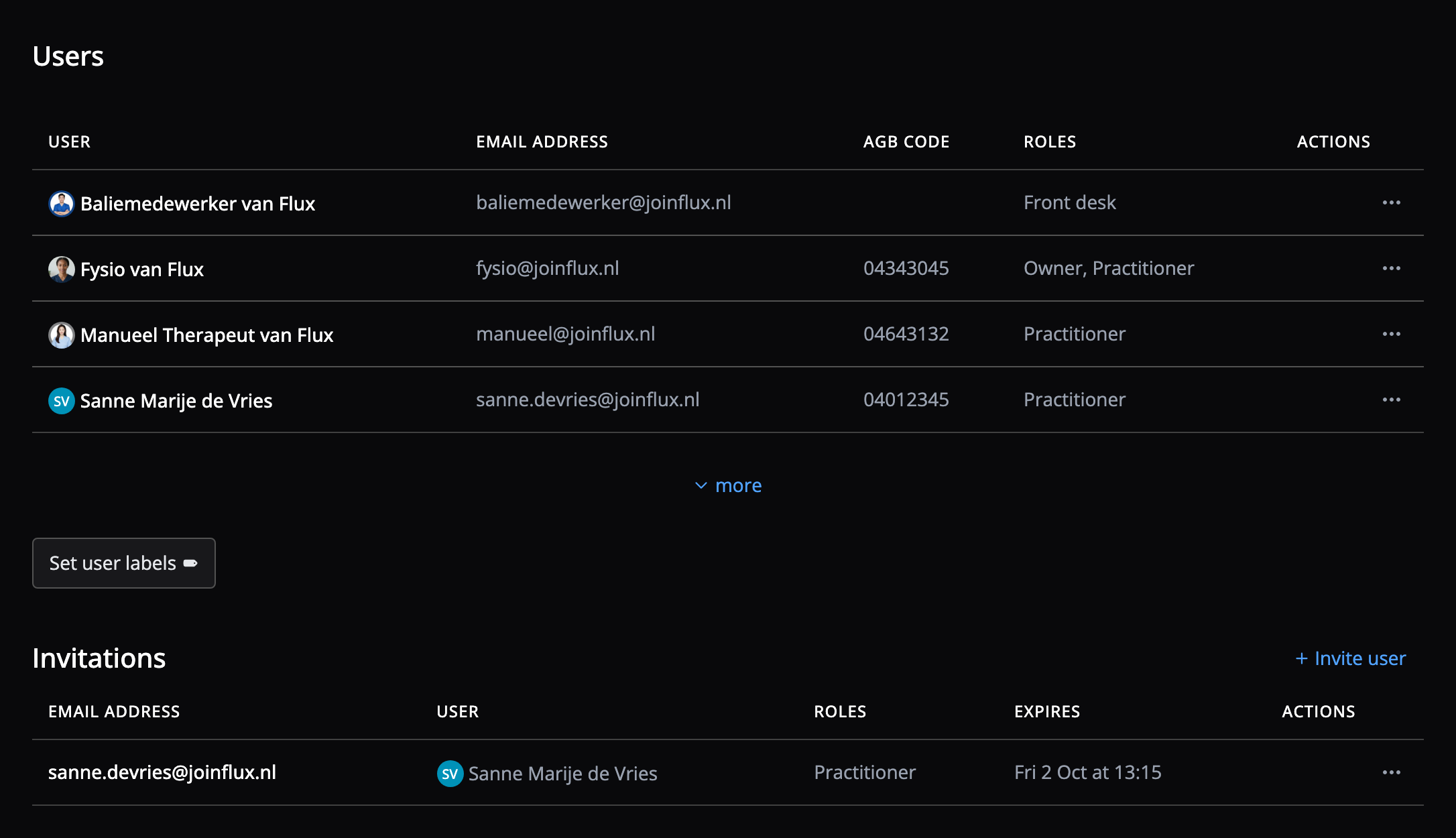
Accounts and users
In Flux, an account and a user are two different things:
- Account: the personal account someone logs in with, with an email address and a password. The account belongs to the person. The account's email address is only used for login-related matters.
- User: that person within your Flux environment. The user belongs to the practice and is managed by the environment's owners. The user's email address is used for all communication within the practice.
One account can be linked to users in several Flux environments. Does a practitioner work at two practices? Then they log in with one account and have a separate user at each practice. Deactivating a user removes that person's access to your environment. The account itself remains.
That is why you send the invitation to your colleague's personal email address. Your colleague uses it to create their own account or link an existing one. Want to use a different address within your environment, such as their work email? Enter it under User email address.
Inviting users
You add a new user by sending an invitation. The user accepts the invitation and gets access to your Flux environment. Only users with the Owner role can send, resend and retract invitations.
Go to Settings → Users by clicking the cog in the left menu and selecting Users. Below the user overview you will find the Invitations section. Click Invite user there and follow these steps:
- Under Invitation, enter the personal email address the invitation is sent to.
- Select one or more roles.
- Under User details, optionally fill in the user's details in advance:
- User email address: the user's address within your environment, for example their work email (leave empty if it is the same as the invitation address)
- First names
- Surname (+ prefix)
- Maiden name (+ prefix)
- Initials (filled in automatically from the first names)
- Selected the Practitioner role? Then also fill in the disciplines, the AGB code per discipline and the BIG number under Professional Information.
- Click Send invitation.
The details you fill in are carried over when the user creates their account.
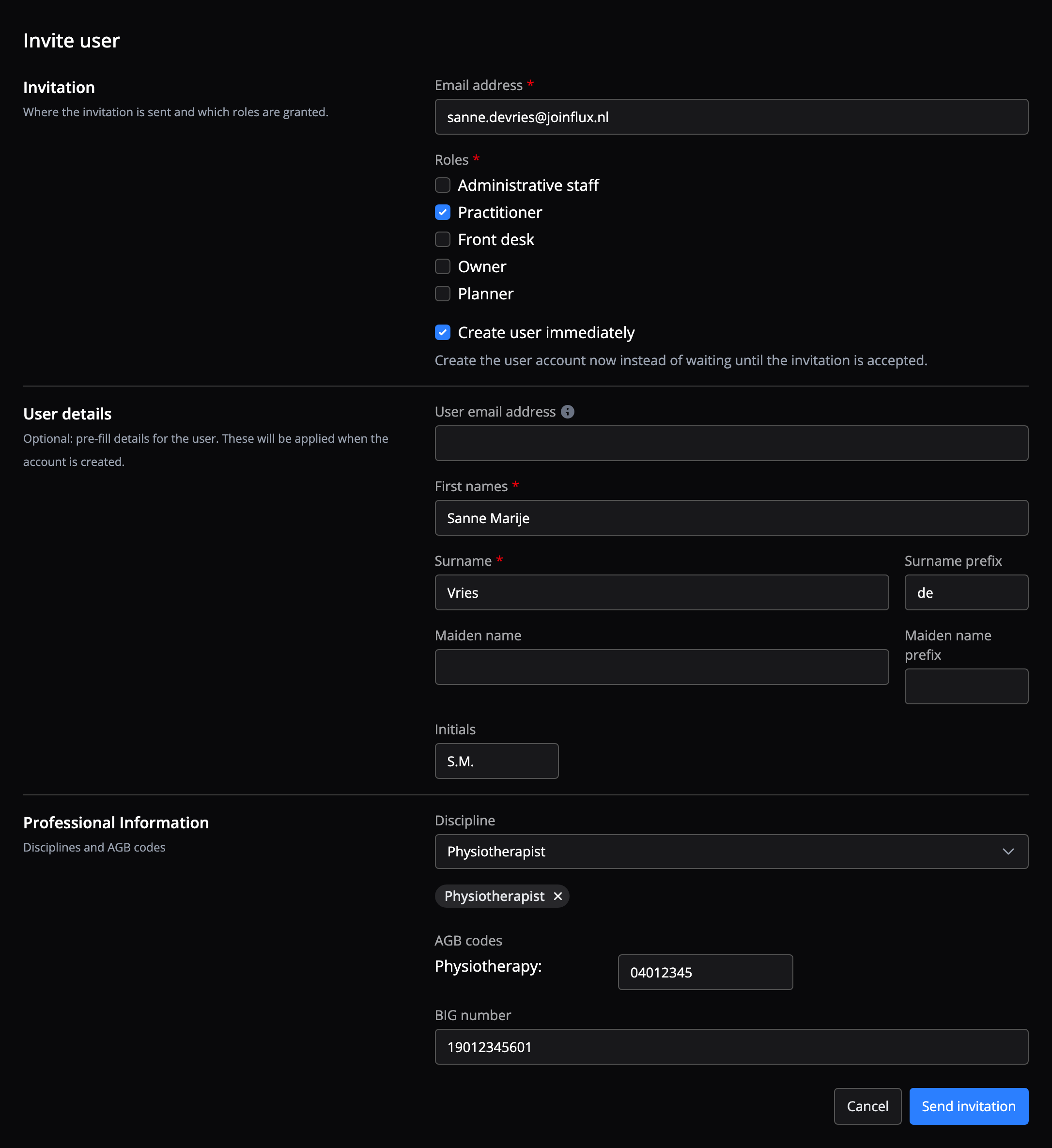
Note: fields marked with a red asterisk (*) are required.
Create user immediately
By default, the user is only created once the invitation has been accepted. If you check Create user immediately, Flux creates the user right away, so the user already appears in the user overview before the invitation is accepted. First names and surname are required in that case. This can be useful if, for example, you want to schedule appointments in advance.
Creating a practitioner without their own AGB code or BIG number
You can create a practitioner without their own codes by adding a ‘responsible user’. The practitioner then gets their own calendar, but invoicing is done under the responsible user's details.
Accepting an invitation
The invitee receives an email with a link to the invitation. Already have a Flux account, for example from another practice? Then the user logs in and accepts the invitation. Otherwise, the user creates a new account in three short steps, with the details you filled in already prepared.
Welcome to Flux: creating your account shows step by step what the user sees. You can also share that page with your new colleague.
Pending invitations
The Invitations section below the user overview lists all invitations that have not been accepted yet. For each invitation you see the email address, the user, the roles and when the invitation expires. An expired invitation is labelled Expired.
Using the dots next to an invitation, you can:
- Resend: the user receives a new link, again valid for 24 hours. The old link stops working.
- Retract: the invitation can no longer be accepted. Did you create the user immediately? Then that user is deactivated.
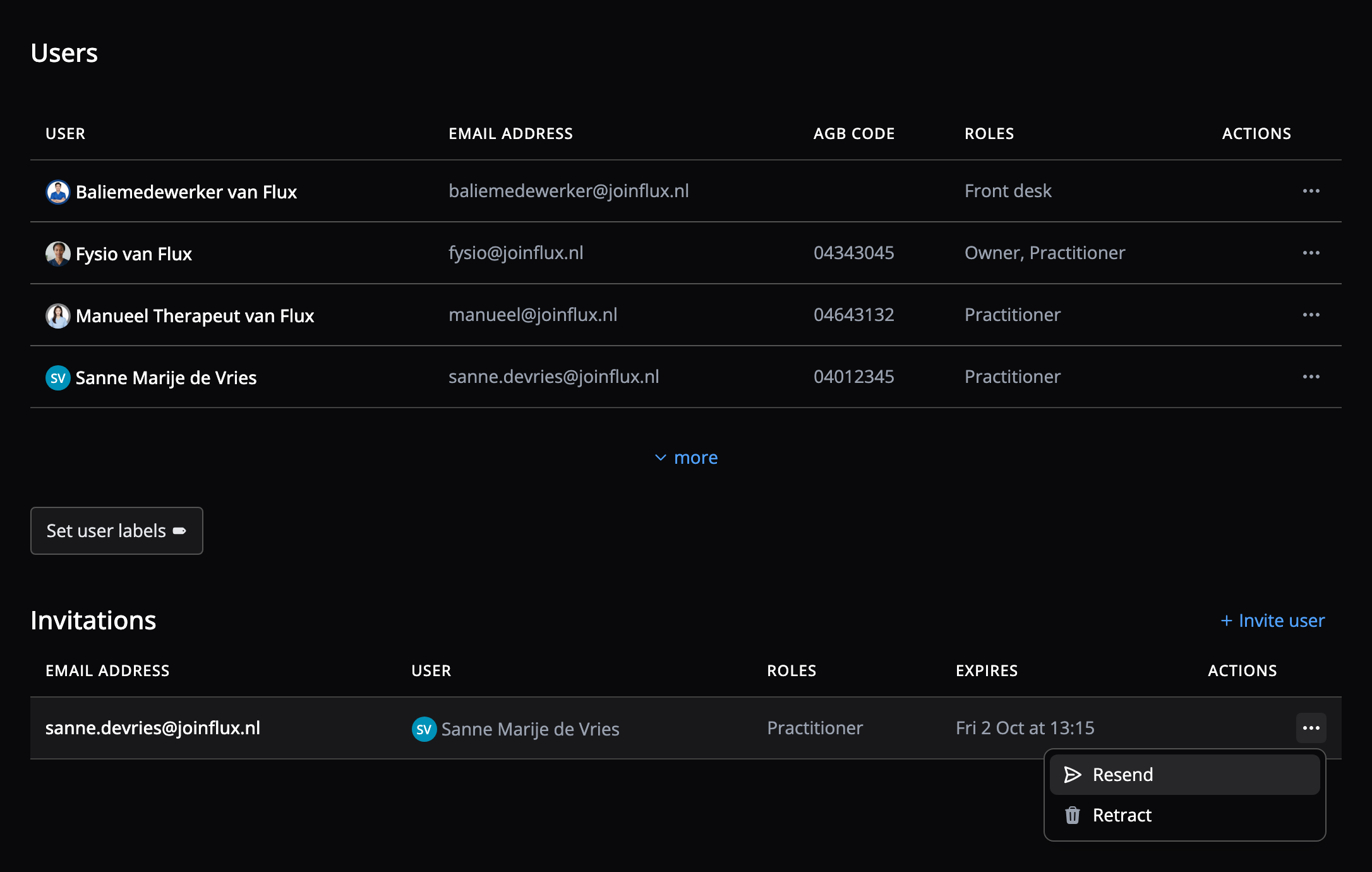
There can be one pending invitation per email address. Sending a new invitation to the same address replaces the previous one.
Problems with invitations
The "Send invitation" button stays grey
The form isn't complete yet. Check that:
- the email address is filled in;
- at least one role is selected;
- first names and surname are filled in if Create user immediately is checked;
- every AGB code you entered consists of 8 digits.
You get an error when sending
- "The provided email address is invalid": check the email address for typos.
- "The provided AGB code is invalid": an AGB code consists of 8 digits.
- "The provided BIG number is invalid": a BIG number consists of 11 digits.
Your colleague didn't receive the invitation
- Check that the email address in the Invitations section is correct.
- Ask your colleague to check their spam folder too. The invitation email is in Dutch, with the subject Uitnodiging: [your practice name] op Flux.
- Resend the invitation using the dots next to it. The link in the previous email stops working.
You sent the invitation to the wrong email address
Retract the invitation using the dots next to it, and send a new invitation to the right address. The link in the first email can no longer be used.
The invitation has expired
Resend the invitation. Your colleague receives a new link, valid for another 24 hours.
Did you check Create user immediately? An expired invitation doesn't change that user: it stays active in your environment. Not resending the invitation? Then deactivate the user yourself.
What happens to a user created immediately
Did you check Create user immediately, but then retract the invitation? Then the user is deactivated.
Editing users
The user overview is available under Settings → Users. It shows all current and former (deactivated) users. You can filter users by role and status. Owners can change roles and deactivate users to manage access.
To edit a user, click the pencil icon on the right of the user's row.
This is also where you fill in details you cannot include in the invitation, such as the title, the responsible user and the professional association. The Active account checkbox turns the user's access on or off.
Adding a profile photo
The default avatar consists of the first letters of the first name and surname. To add a profile photo for a user in Flux:
- Click the avatar of the user you want to add a photo to.
- Select Use camera to take a new photo, or Upload photo to upload an existing image.
- The user's avatar is updated automatically with the selected photo.
Photos help personalize user profiles and make it easier to recognize colleagues throughout your Flux environment.
Adding a professional association
A healthcare provider can be a member of one or more professional associations. To add a professional association to a user:
- Go to the professional information section.
- Click + Add membership.
- Select the right membership from the list of known professional associations.
- Enter the membership number.
After adding it, the membership appears in the list. Click the dots next to the membership to edit or end it.
Roles
Flux lets you assign different roles to users, matching their responsibilities within the organization.
The following roles are available in Flux:
- Practitioner
- Administrative staff
- Owner
- Front desk
- Planner
Practitioner
Has access to patient records, provides treatments and can create invoices and claim lines.
To prevent a practitioner from viewing financial data, adjust this under Settings → Access.
Administrative staff
Responsible for administrative tasks such as keeping track of invoices and claims.
Owner
Has full access to all features in Flux, including managing users and settings.
Front desk
Runs the reception, has access to scheduling and patient registration, and can create, send and download private invoices.
Planner
Allowed to schedule appointments for practitioners.
Deactivating users
When an employee leaves the organization, users with the Owner role can deactivate them by unchecking Active account. The user is set to inactive and loses access to the organization's Flux environment.
The employee's personal account remains, so they can keep logging in to other Flux environments where they have an active user.
Frequently asked questions
Have a question or stuck on something? Below are answers to frequently asked questions about users.
When I add a new practitioner in Flux, do I also need to inform Vektis?
Yes. When you add a new employee as a Practitioner in Flux, it is important to report this to Vektis as well. Vektis manages the AGB register, in which healthcare providers and their AGB codes are registered.
Linking the new practitioner's AGB code to your practice is essential for claiming treatments correctly with health insurers. It makes sure the practitioner is listed as a recognized healthcare provider in the insurers' systems.
You can make this change yourself in your Mijn Vektis account. Log in and add the new working relationship to your AGB registration under AGB-wijzigingen zorgverlener. This keeps the details of your organization and employees up to date and prevents claim issues.
What are the differences between the user roles in Flux?
An overview of the user roles in Flux and their access rights:
- Practitioner: access to patient records and allowed to provide treatments and create invoices and claim lines.
- Administrative staff: responsible for administrative tasks, such as managing invoices and claims, without access to patient records.
- Owner: full access to all features in Flux, including managing users, settings and financial data.
- Front desk: responsible for reception work, with access to scheduling, patient registration and the ability to create, send and download private invoices.
- Planner: limited access, only allowed to schedule appointments for practitioners, without further administrative or treatment access.
Each role supports specific responsibilities and helps protect access to sensitive information within the practice.
Where is a user's title shown in Flux?
Users' titles are shown in several places in Flux:
- Hover: when you hover over a user's name in the calendar, their title appears.
- Online booking: depending on your settings, titles can also be visible when patients book appointments online, which helps them pick the right practitioner.
- Calendar: when you search for a user to schedule an appointment, their title is visible in the search results.
- Scheduled appointments: the practitioner's title is shown in the scheduled appointment.
Which email address do I send the invitation to?
Send the invitation to your colleague's personal email address. With the invitation, your colleague creates a personal account or links an existing one. That account stays theirs, even if they later move to another practice.
Want to use a work email address within your environment? Enter it under User email address in the invitation form, or later under Email address when editing the user.
What is the difference between an account and a user?
The account is personal: you log in with it, using your own email address and password. The user is you within a Flux environment, with your roles, AGB code and calendar. With one account you can have users in several Flux environments. An owner at the practice manages the user, but not your account.
How do I deactivate a user in Flux?
To deactivate a user in Flux:
- Go to Settings → Users for an overview of all registered users.
- Find the user you want to deactivate and click the pencil icon to open their profile.
- Uncheck Active account.
- Click Save to confirm.
The deactivated user immediately loses access to your organization's Flux environment. This is an important step to protect your practice data, especially when employees leave the organization.
What does ‘Responsible user’ mean?
When a practitioner does not have an AGB code and/or BIG number yet (for example because they have not graduated yet), you can set a Responsible user. The responsible user is a practitioner with a valid and active AGB code and BIG number.
For a practitioner with a linked responsible user:
- Own calendar: the practitioner keeps their own calendar and has access to the same features as other practitioners.
- Invoicing: treatments provided by this practitioner are invoiced under the responsible user's references.
Where can I find professional associations that are not listed?
Flux maintains its own list of professional associations and logos, so you only need to add your membership in Flux. Is your professional association not listed? Contact us so we can add it.