Group appointments in the calendar
Plan, view and change group appointments in the calendar, and add or remove patients.Overview
A group appointment shows as one block in the calendar of each practitioner taking part. The patients in the group don't get blocks of their own. So you see at a glance when the group meets and how many places are still free.
What the block shows
The block of a group appointment shows:
- the name of the group, with a people icon in the top right,
- the time, for example 10:00–11:00, and
- how many places are taken out of the maximum, for example 3/8. When every place is taken, it says for example 4/4.
The block has the colour of the appointment type the group was planned from.
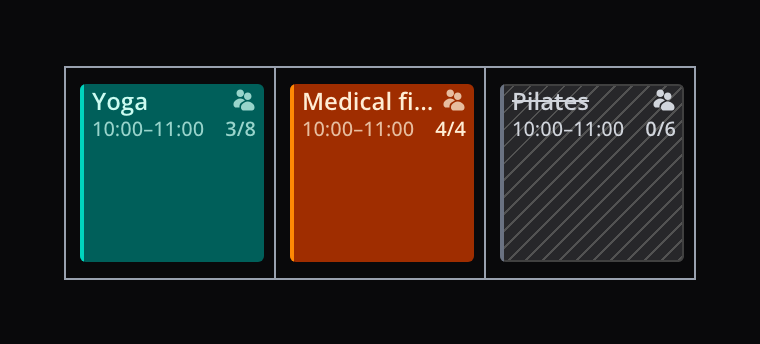
In a narrow column, such as the week view, the name or the time can be cut short. Hover over the block to see the full name and time.
Plan a group appointment
- Click or drag on an empty spot in the calendar, as for a new appointment. The new appointment opens in the side panel on the right. If the side panel is collapsed, it opens in a small window next to the spot.
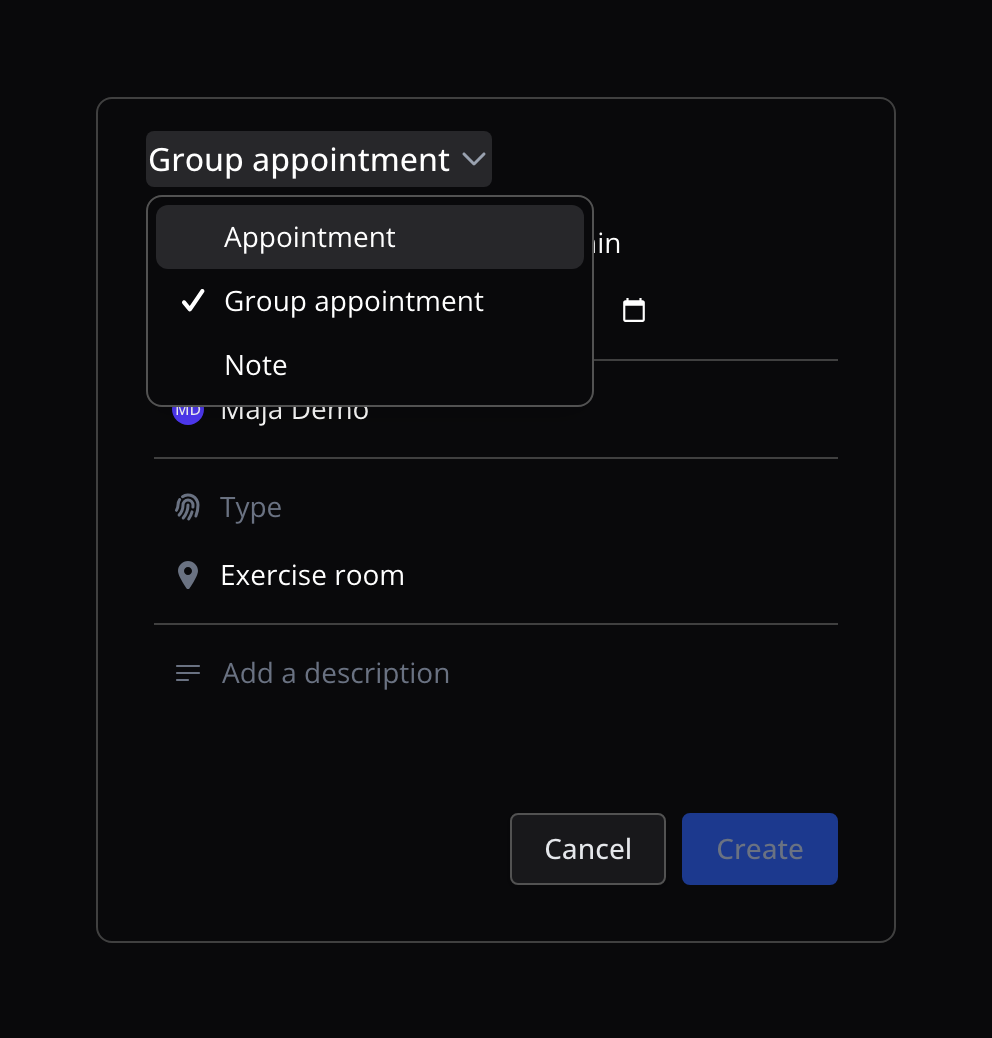
- At the top, click Appointment and choose Group appointment.
- Under the practitioners, at Type, choose the appointment type for the group, for example Medical fitness. Each appointment type shows its maximum number of patients. Only appointment types of the kind Group are listed. If there are none yet, you see Manage appointment types instead of the choice. Create an appointment type there first. The name, colour, duration and maximum come from the appointment type.
- Check the practitioner, date, start time, duration, location and description, and change them if needed. The time and practitioner come from the spot you clicked. You add more practitioners as in Practitioners.
- Optionally, add patients right away under Patients, as in Add a patient. Added the wrong patient? Hover over their row and click the cross (×).
- Click Create.
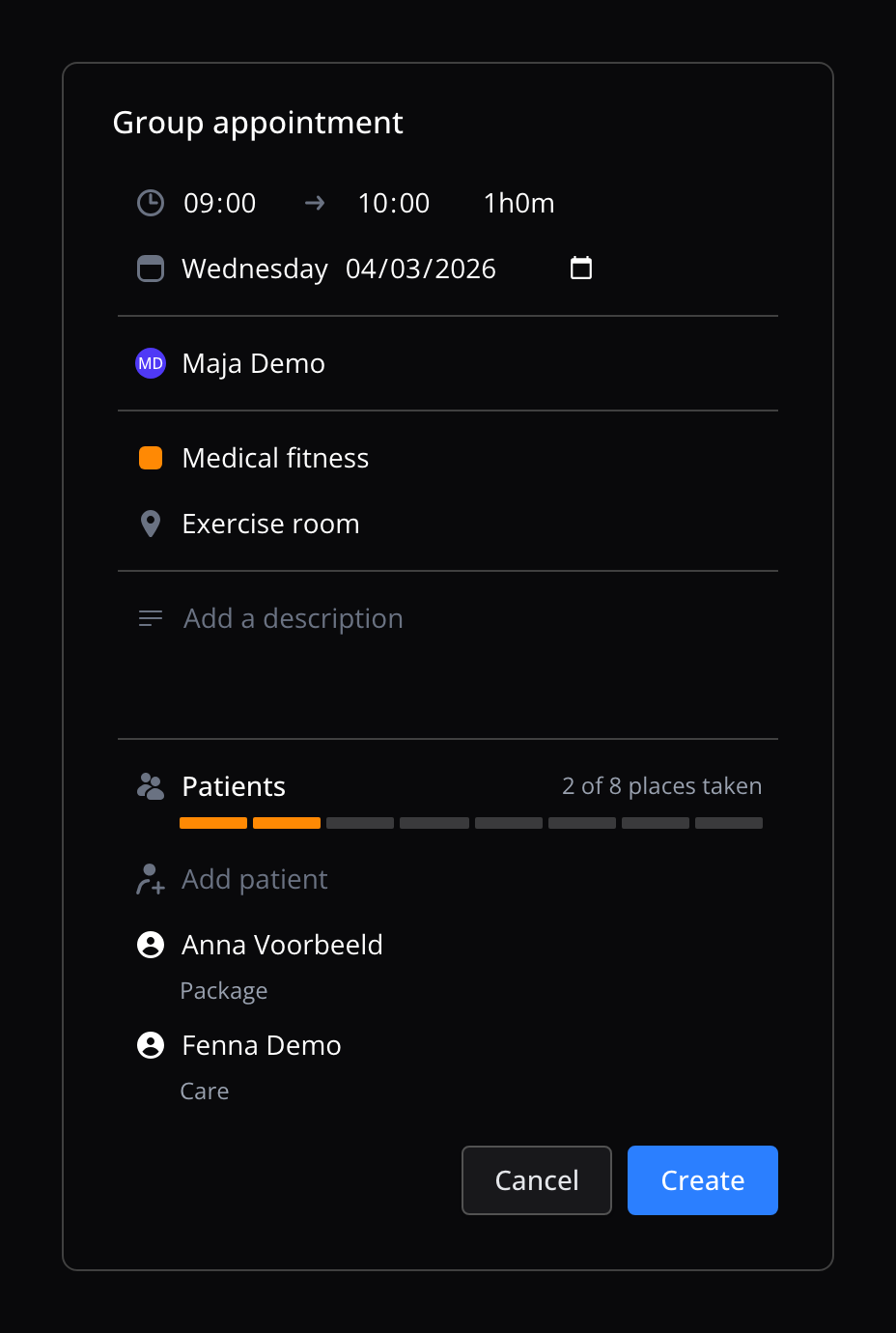
The group appointment is now in the calendar. Cancel closes the new group appointment without creating anything.
Open a group appointment
Click the block of a group appointment in the calendar. The group appointment opens in the side panel on the right, in the same place as an appointment. If the side panel is collapsed, the group appointment opens in a small window next to the block. Click the All details icon at the top of the small window to open the group appointment in the side panel.
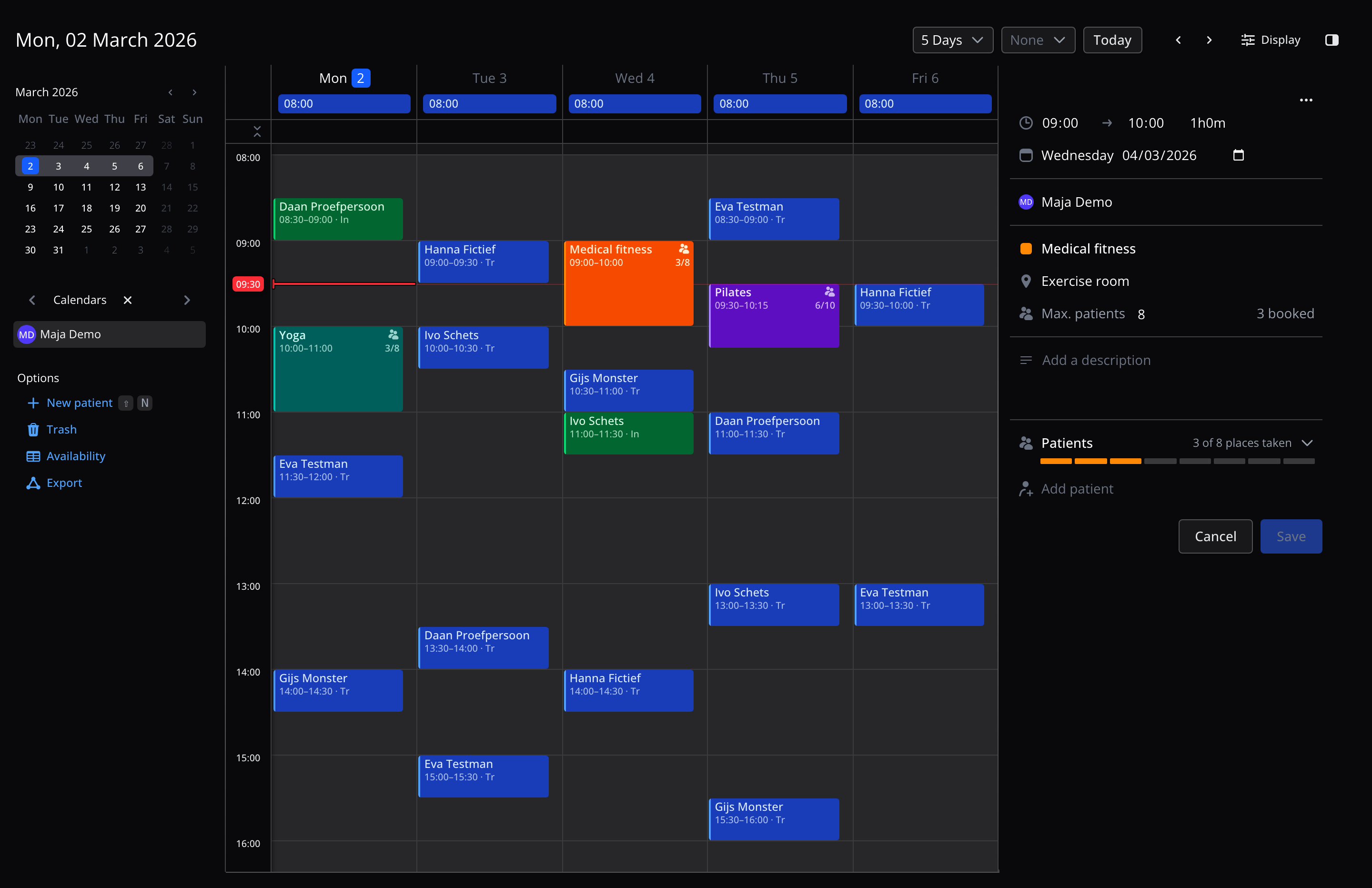
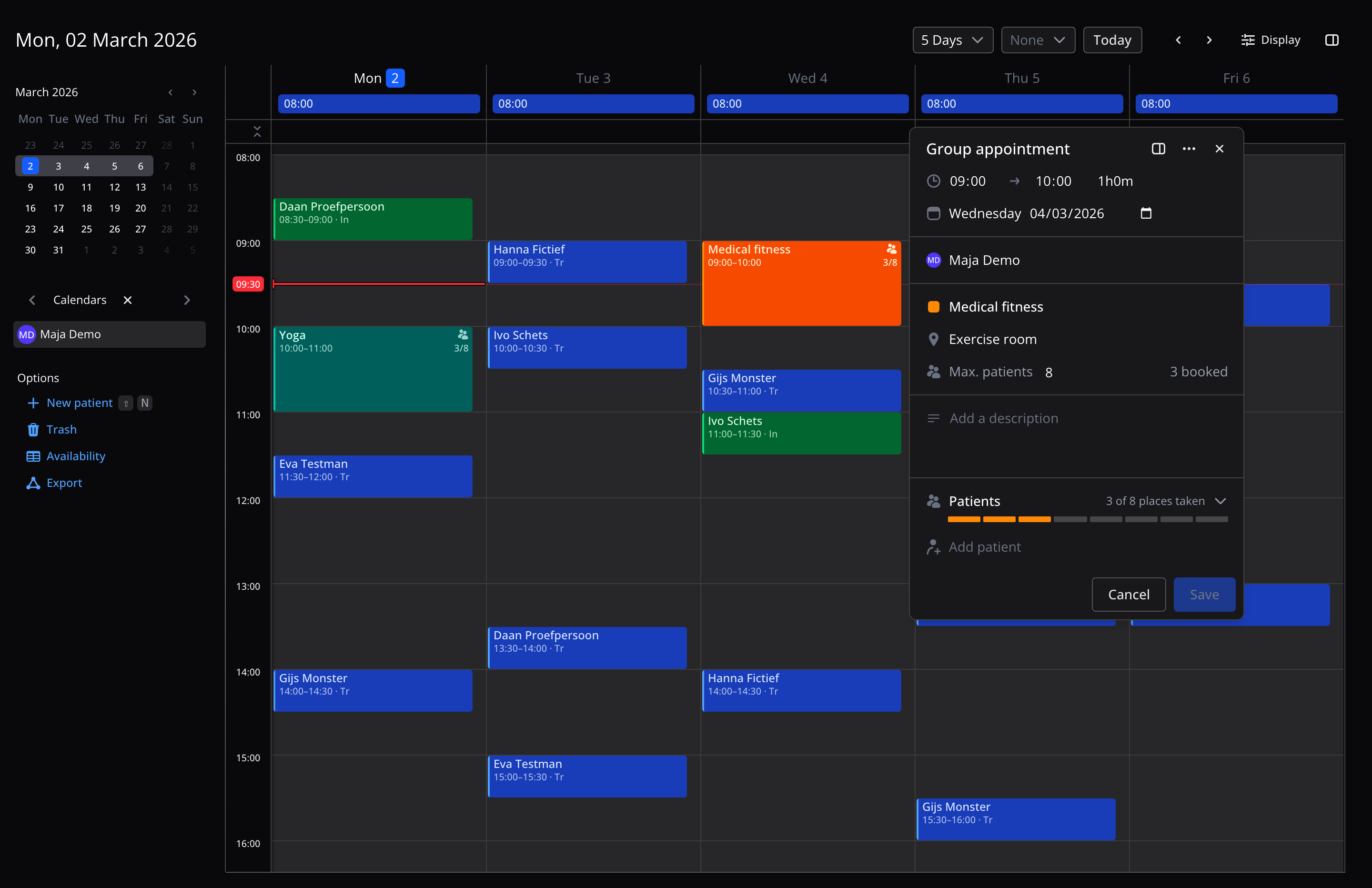
In the group appointment you see:
- the date and time,
- the practitioner or practitioners,
- the name of the group and the location,
- under Max. patients, the maximum and how many places are booked,
- the description, and
- under Patients, how many places are taken, for example 3 of 8 places taken, with a bar of the places in the group's colour below it. Click Patients to see who is in the group: each patient with the status of their appointment and below it how they pay (for example Package). If the patient pays with Care, the treatment process is shown there too.
You change everything in the group appointment right where you see it, see Change a group appointment. Close the group appointment with Cancel, or in the small window with the cross (×).
Patients in the group
In a saved group appointment, the list of patients is folded. Click Patients to open it. There you change the patients' status or way of billing and remove them. Add patient stays visible below Patients, so you can add a patient without opening the list. These changes are saved at once; you don't need to click Save. Click a patient's name to open the patient. If Flux can't make a change, you see a message with the reason.
When you change a patient's way of billing, you choose from the ways the appointment type offers, see Change the way of billing.
Add a patient
- Search for the patient under Add patient, above the list of patients, and choose the patient. If participants can pay in one way and that isn't Care, the patient is added straight away.
- Otherwise, the patient now has a row in the list. Picked the wrong one? Click the pencil (Choose another patient).
- If participants can pay in more than one way, choose how the patient pays under the name, at Choose how to bill, for example Care or Package. Which ways there are is set in the appointment type.
- If the patient pays with Care, optionally choose the treatment process, see Choose a treatment process.
- Click Add.
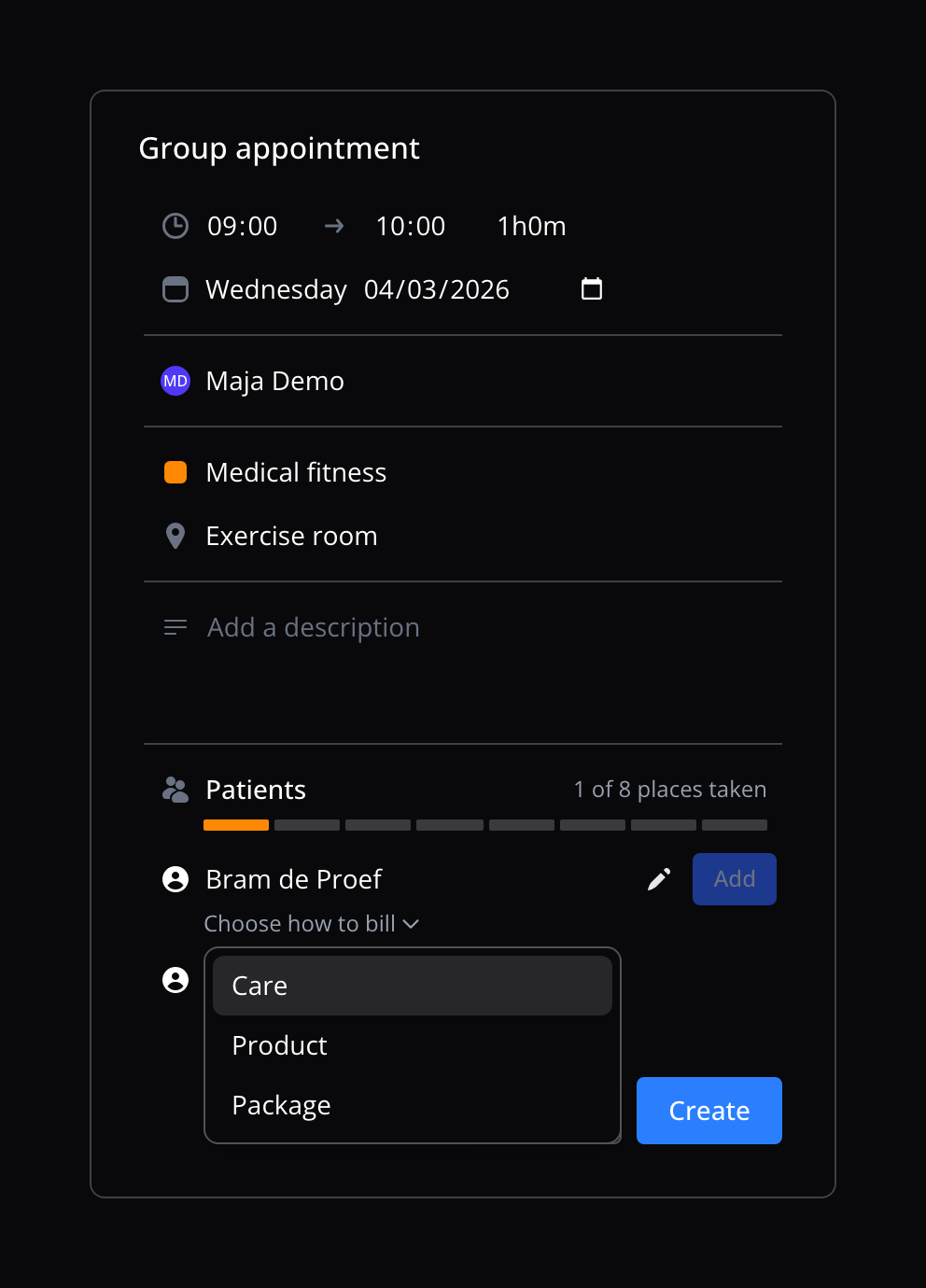
The patient gets their own appointment in the group, like any other appointment.
If the group is full, it says This group is full under Patients and Add patient is gone. You can't add another patient then. Give the group a higher maximum first, see Maximum number of patients.
Choose a treatment process
A patient who pays with Care needs a treatment process before the appointment can be invoiced. It's optional when you add the patient, but link it before you invoice. Without one, that patient's appointment isn't invoiced; the other patients in the group are. Product and Package don't need one.
When you add the patient, you choose the treatment process below the name, after the way of billing. If the patient has one open treatment process, it's already chosen. You can also add the patient without a treatment process and choose it later.
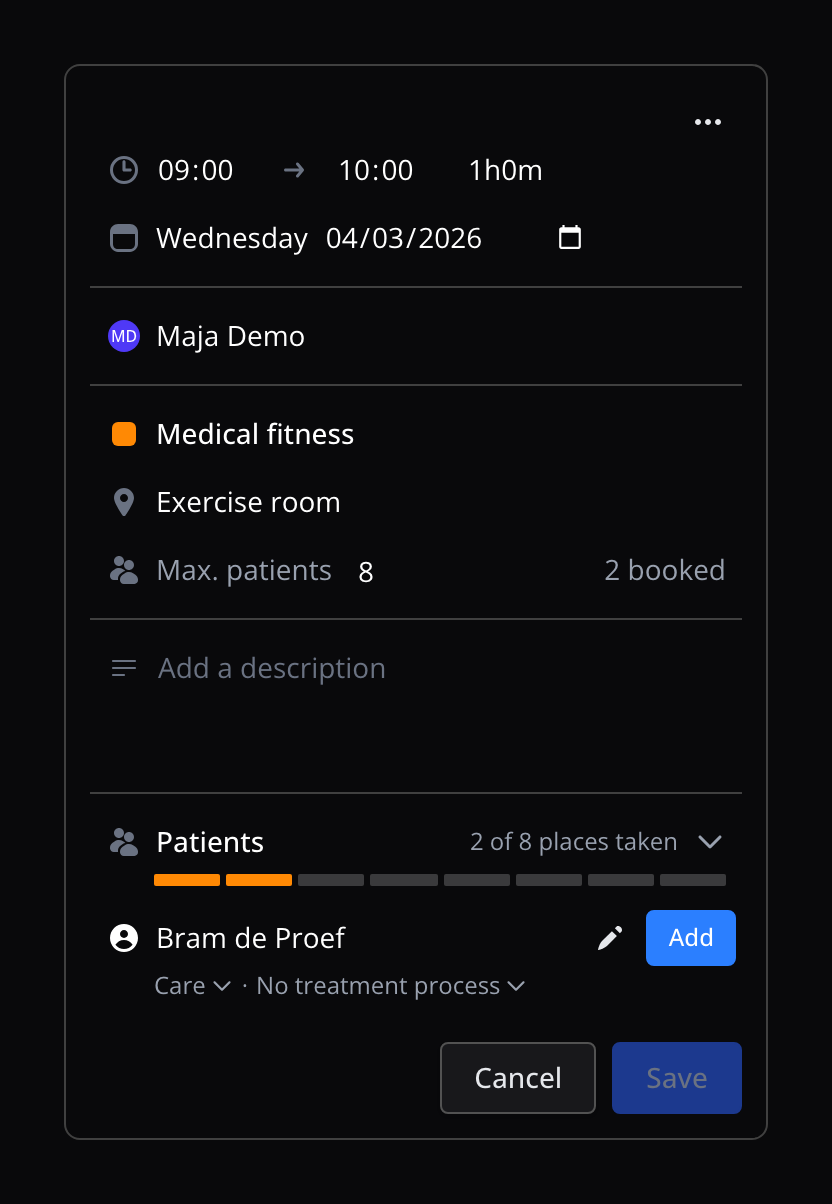
In the list of patients, a patient who pays with Care shows which treatment process belongs to the appointment, for example Care · Frozen shoulder. Click it to choose a different one. If it says No treatment process, choose a treatment process before you invoice. Appointments without a treatment process also show up on the worklist.
Change the way of billing
Click the way of billing below the patient's name, for example Care, and choose another one. The change is saved at once.
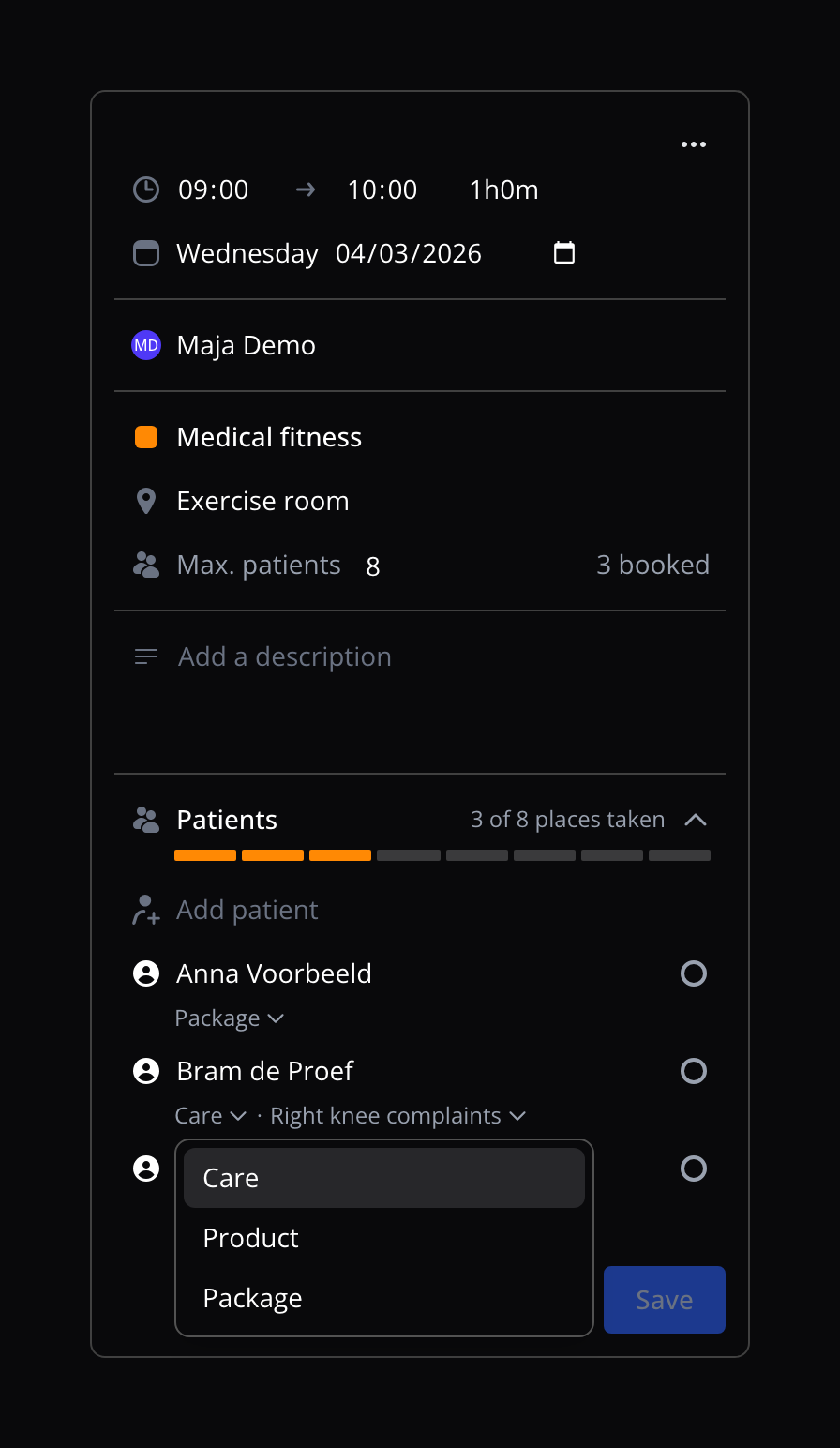
If you choose something other than Care, the appointment no longer has a treatment process.
If the patient's appointment has already been invoiced, you first see Change billing of an invoiced appointment. Click Change billing and then credit the old invoice yourself.
Change a patient's status
Click the status to the right of the patient and choose Booked, Arrived, Fulfilled, No-show, Cancelled or Running late. If the patient's appointment has already been invoiced, you can only choose Booked.
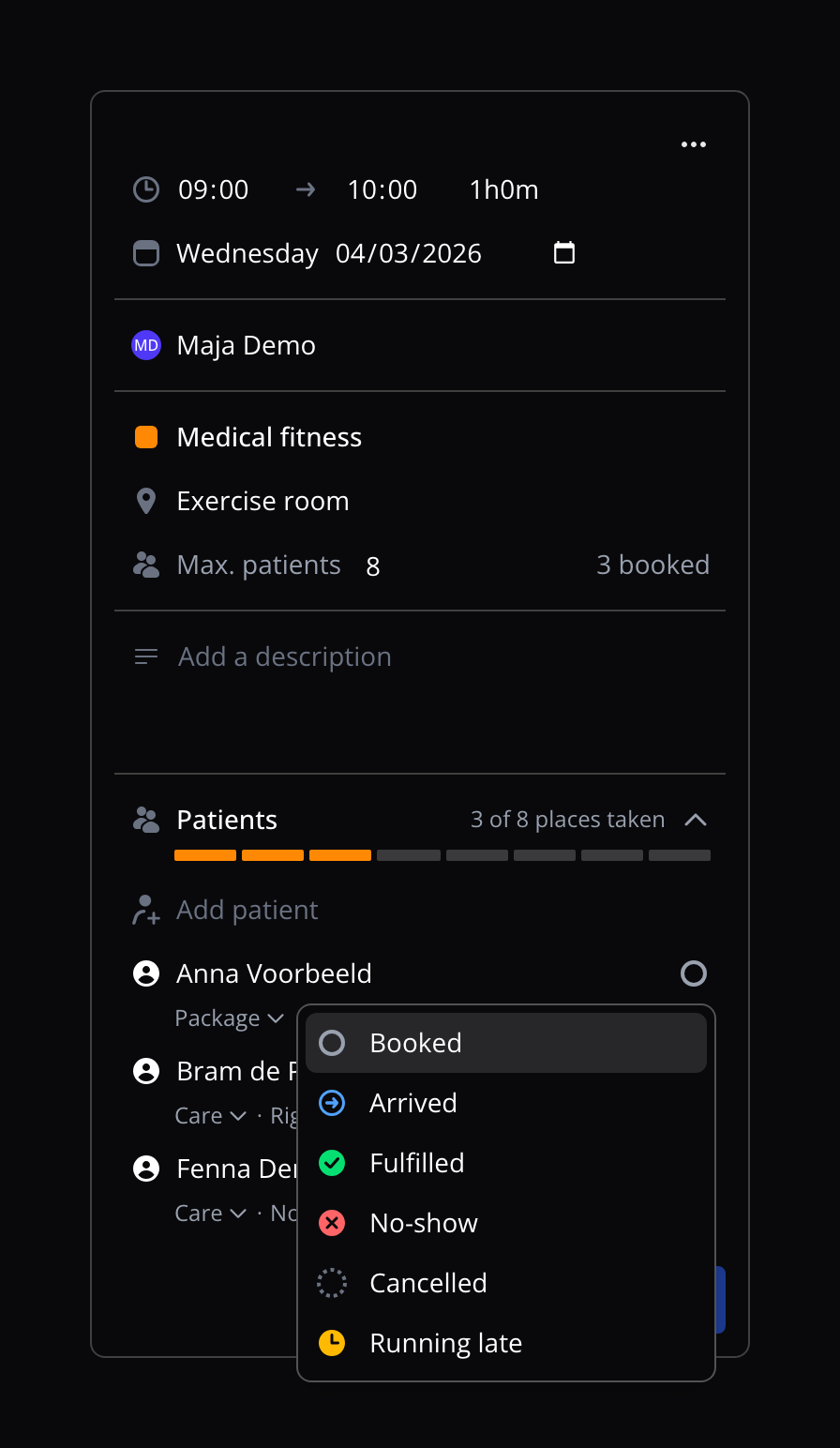
A patient set to No-show stays in the list, but their place becomes free again. With 3 patients and one no-show, for example, it says 2 of 8 places taken. To give the patient their place back, set them to Booked again. That isn't possible when the group is full. You can still change the way of billing and the treatment process of a patient who didn't show.
A no-show is invoiced with the appointment type's No-show product, if your practice invoices no-shows. It's never claimed as care, and with a package no credit is used.
If you set a patient to Cancelled, you remove them from the group, and they're never charged. More about invoicing a No-show in No-shows and cancellations.
Remove a patient from the group
Click the patient's status, choose Cancelled and confirm in Remove patient from group:
- Remove and email patient: the patient gets the same email as when a regular appointment is cancelled.
- Remove without email, via the arrow.
The patient drops out of the list, their appointment is cancelled and the place becomes free. The patient isn't charged, see No-shows and cancellations.
If a credit from a package has already been used for the patient's appointment, you can't remove the patient.
If you don't see Cancelled, you don't have permission to manage group appointments.
Change a group appointment
You change a saved group appointment right in the side panel or the small window. You can change:
- the practitioners, see Practitioners,
- the date,
- the start time and the duration,
- Max. patients, see Maximum number of patients,
- the location, and
- the description.
The name and colour come from the appointment type; you change them in the appointment type.
Click Save to keep your changes, or Cancel to close the group appointment without saving.
If patients are already booked and you change the date, the time, the practitioners or the location, you first see Change patients' appointments. The patients' appointments get the new time, practitioners and location, and their reminder moves along. Choose:
- Save and email patients: every patient whose appointment changes gets the same email as for a changed regular appointment. No email is sent for a group appointment that has already started.
- Save without email, via the arrow.
- Back to go back without saving.
Practitioners
Each practitioner has a row of their own, with their name and photo.
- Add a practitioner: hover over the first practitioner's row and click Add practitioner. Search for the practitioner and choose them. If there's no practitioner yet, search under Add practitioner straight away.
- Remove a practitioner: click the ellipsis (⋯) in the practitioner's row and choose Remove.
Then click Save. View agenda in a practitioner's menu opens that practitioner's calendar.
Maximum number of patients
A group appointment gets the appointment type's maximum number of patients when you plan it. To give this group a different maximum, change Max. patients and click Save. A later change to the maximum in the appointment type doesn't change this group.
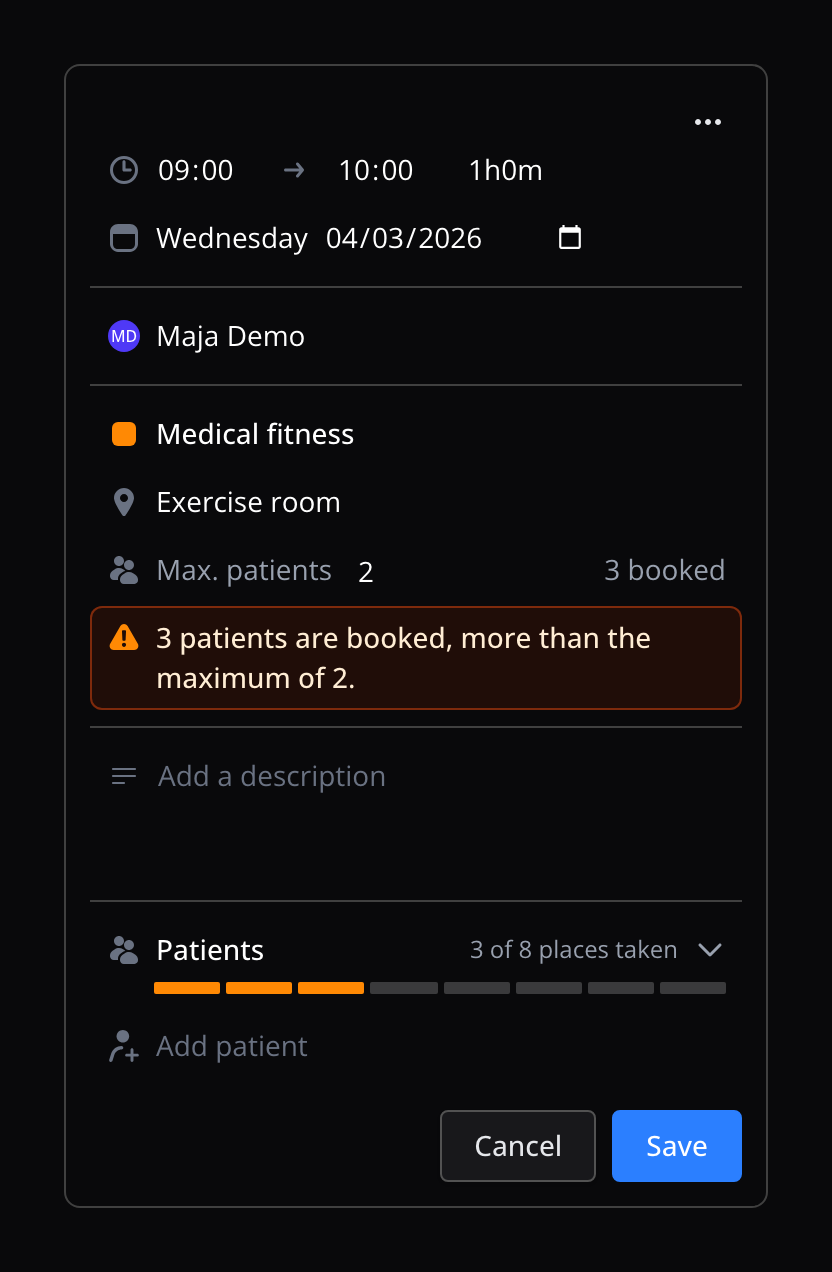
Next to the maximum you see how many places are booked, for example 3 booked. If you set the maximum lower than the number of booked patients, you see a warning. The patients keep their place. Under Patients, you then see a warning that more patients are booked than the maximum, and you can't add a patient.
Cancel a group appointment
Click the ellipsis (⋯) at the top of the group appointment, choose Cancel group appointment and confirm:
- Cancel and email patients: every patient gets the same email as when a regular appointment is cancelled.
- Cancel without email, via the arrow.
The appointments of all booked patients are cancelled too, and the patients aren't charged. See No-shows and cancellations.
If a credit from a package has already been used for a patient's appointment, you can't cancel the group appointment.
Cancelled group appointments
A cancelled group appointment is hidden in the calendar by default, like other cancelled appointments. Turn on Show cancelled under Display in the calendar to see them. The name of the group is then struck through.
When you open a cancelled group appointment, it says This group appointment has been cancelled. at the top. You can't change anything any more. Close it with Close.