Exact Online
Connect Flux with Exact Online for automatic synchronization of invoices, revenue, corrections and payment statuses.
Overview
With the Exact Online integration you automate the financial administration around your healthcare practice. In Flux you plan appointments, work with patients, record care and create invoices or claims. Exact Online handles the accounting side: sales invoices, ledger accounts, debtors, reports and period closing.
The integration works in both directions. Invoices, claims and corrections created in Flux are sent to Exact Online. Payment statuses from Exact Online come back into Flux once they have been processed. This helps you avoid separate exports, spreadsheets and double entry between your care administration and bookkeeping.
An important part of this integration is deferred revenue posting. Flux can book revenue on the treatment date, so revenue reporting better reflects the period in which care was delivered. The main benefit is that monthly revenue better matches the care delivered in that month, even if you invoice or correct later.
Configuration
Activate Exact Online via Settings → Apps → Exact Online. For this you need the Owner role in Flux and an Exact Online user with sufficient rights.
Requirements
To use the Exact Online integration, you need:
- A Flux user with the Owner role.
- An Exact Online user with rights to connect the administration.
- An Exact Online administration you want to use for Flux.
Exact Online Setup
Check in Exact Online whether the account you use is allowed to create invoices and has access to the administration you want to connect to Flux.
Flux Setup
Create the integration in Flux:
- Go to Settings → Apps → Exact Online.
- Open the settings of the Exact Online app.
- Click Add configuration.
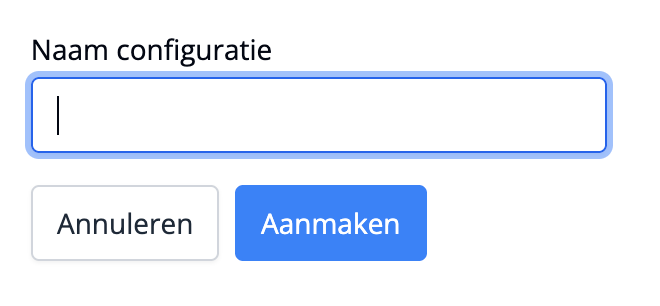
- Give the configuration a recognizable name, for example Exact Online.
- Click Create.
The Exact Online configuration has now been created in Flux.
Then connect the configuration to Exact Online:
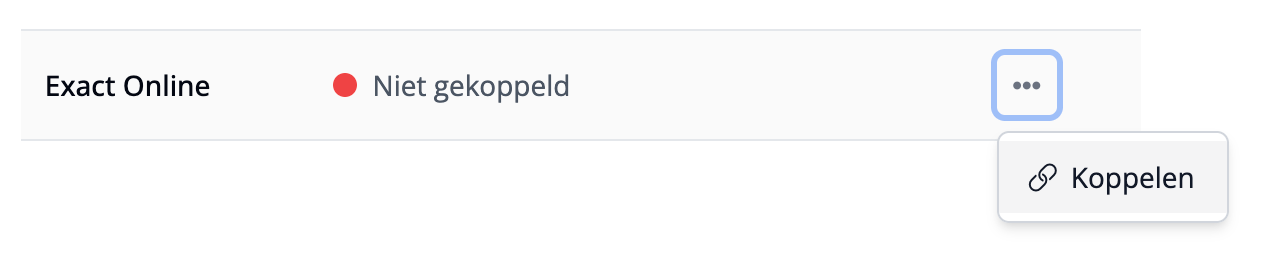
- Open the menu next to the unconnected configuration via the ellipsis (⋯).
- Select Connect.
- You are automatically redirected to Exact Online.
- Log in to Exact Online.
- Authorize Flux via OAuth to exchange data with Exact Online.
After successful authorization, you automatically return to Flux. The configuration is then connected and in manual mode, so you can first check and configure the settings.
Adjusting the Connection
Now that Flux has access to your Exact Online environment, you can configure the integration.
To adjust the Exact Online configuration:
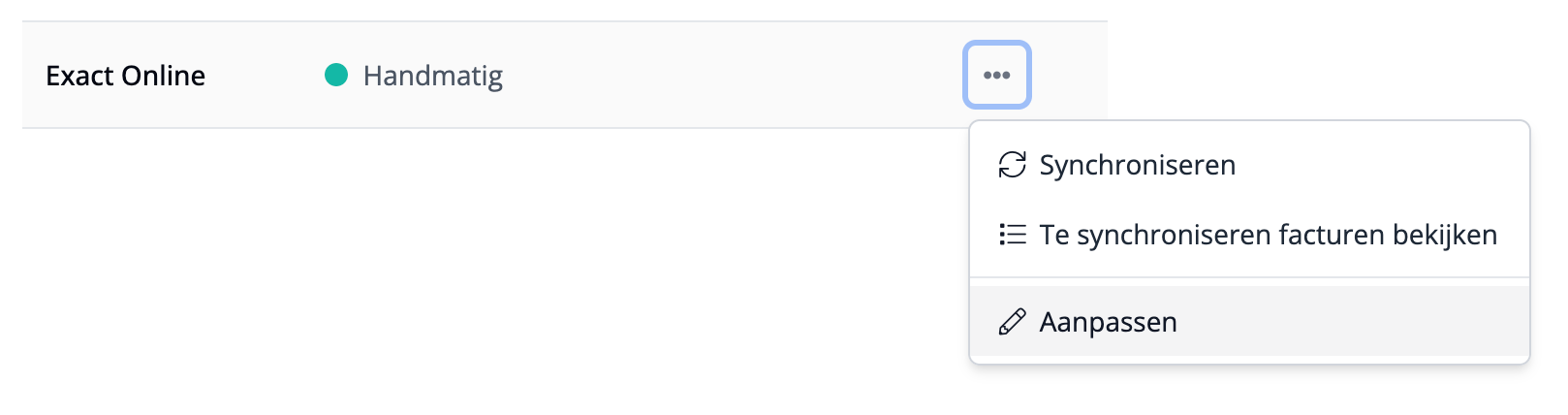
- Click the ellipsis (⋯) on the right side of the configuration.
- Select Edit.
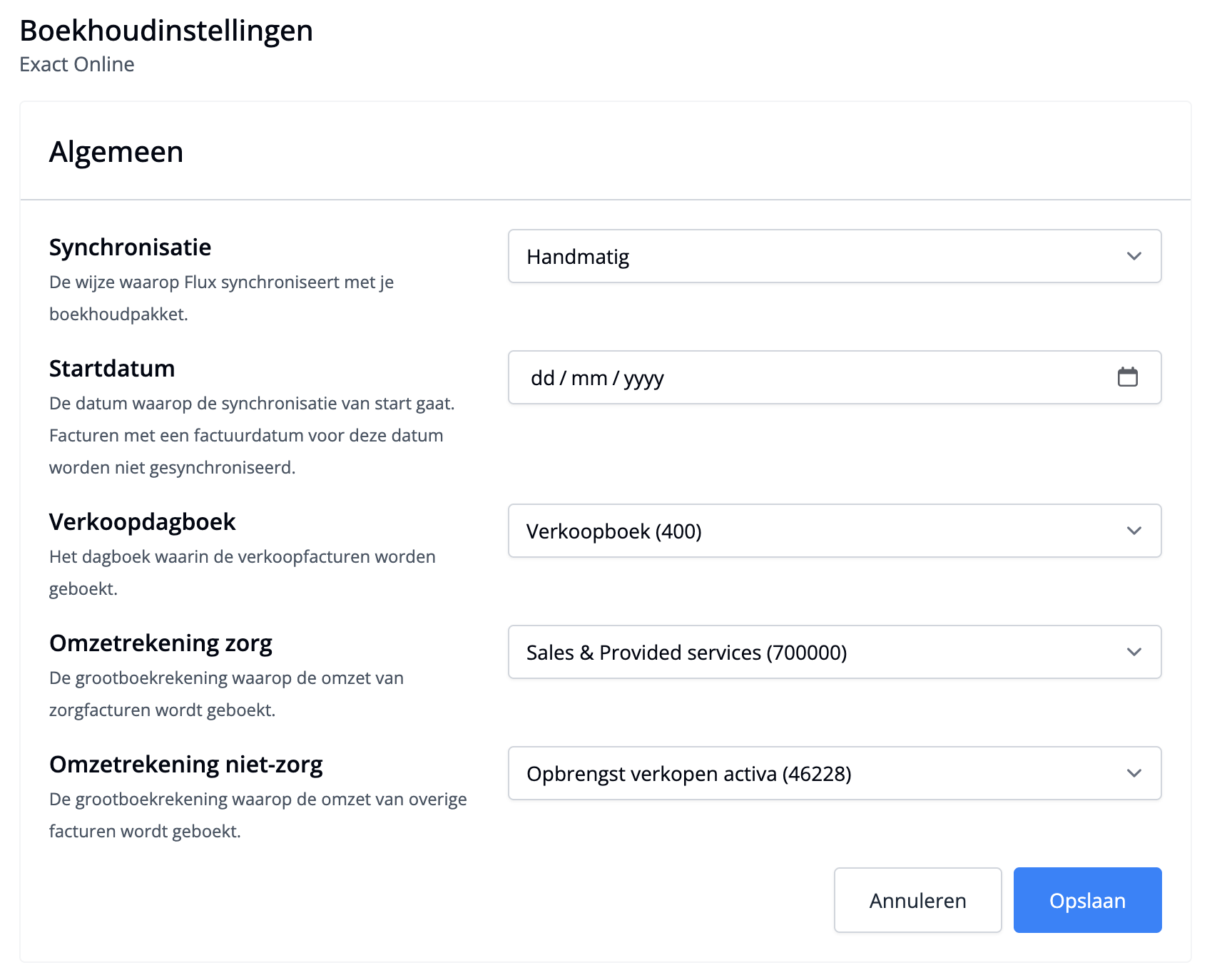
Flux now retrieves the data from your Exact Online setup. Select the relevant sales journal and select a ledger account for care revenue and other revenue.
These settings determine in which sales journal invoices from Flux are posted and on which ledger accounts the revenue is booked.
Check at least:
- Whether Flux synchronizes with Exact Online manually or automatically.
- The start date on which Flux starts synchronizing. Invoices with an invoice date before this date are not included in the integration.
- The sales journal in which sales invoices from Flux are posted. Ask your bookkeeper or accountant which journal to select.
- The ledger account on which care revenue is posted.
- The ledger account on which other revenue is posted.
- Click Save to confirm the settings and activate the configuration.
Deferred Revenue Postings
Deferred revenue postings make it possible to assign revenue to the period in which care was delivered. This is important when the treatment date and invoice date fall in different periods. Flux can link revenue to the treatment period, while Exact Online processes the booking further.
Enable deferred revenue postings in Exact Online before you book revenue on the treatment date. The steps are described in the Exact Online Knowledge Base article about deferred revenue and deferred costs.
Consult your bookkeeper or accountant about which ledger accounts and journals Exact Online should use for this.
Advanced Settings
Advanced settings are intended for practices that want to align more precisely with their bookkeeping. Flux supports specific choices for revenue accounts, cost centers, users, products, VAT rates, locations and treatment types. You do not need to use all of these settings to get started with Exact Online.
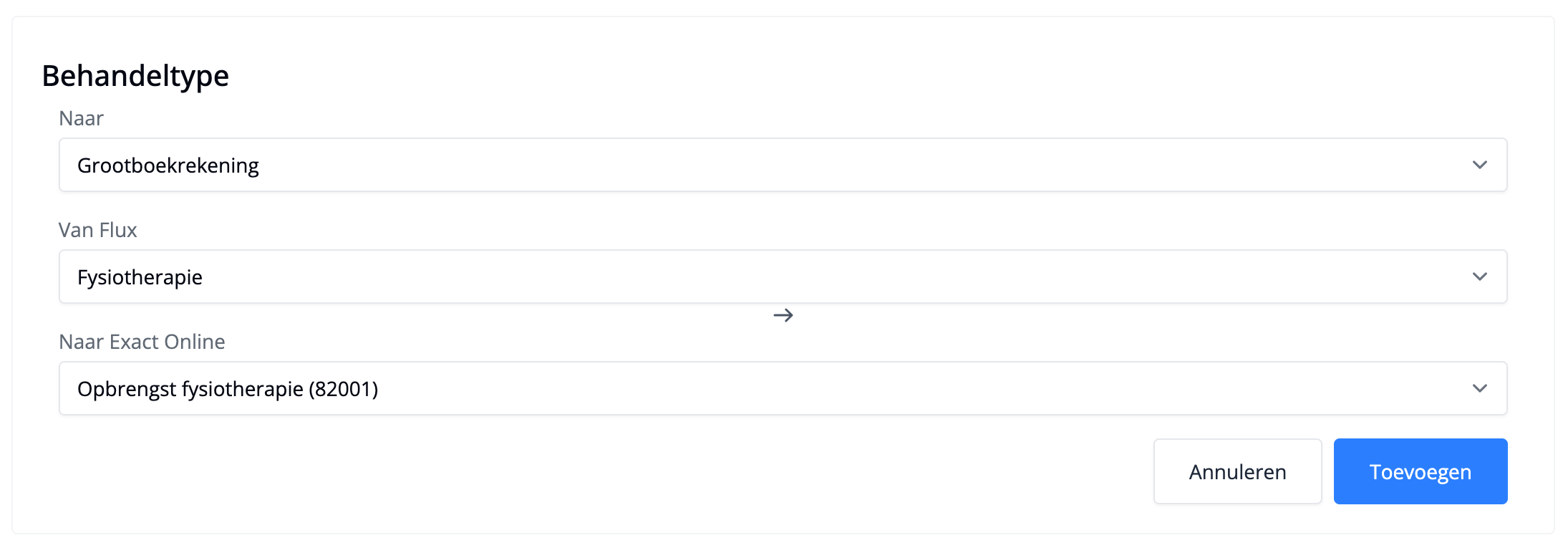
To make reconciliation with the bookkeeping possible, you can split revenue more specifically. This helps when your bookkeeper or accountant wants to see revenue by practitioner, location, service, product group, VAT rate or cost center.
Consult your bookkeeper or accountant about which allocation fits your reports, VAT return and period checks before enabling automatic synchronization.
Year-End Closing
After closing a financial year or period, you want to prevent new postings from ending up on old dates in Exact Online. Flux books revenue on the treatment date of the invoice line by default. Around year-end closing, set the Minimum booking date.
If the treatment date is before the minimum booking date, Flux uses the minimum booking date as the booking date. This keeps the posting within the period in which posting is still allowed.
Consult your bookkeeper or accountant about which minimum booking date to set.
Synchronization
Use manual synchronization when setting up the Exact Online integration for the first time. First process a limited period and then check the reconciliation in Exact Online.
Use View items to synchronize to check which invoices are ready before sending them to Exact Online. Check together with your bookkeeper or accountant whether the sales journal, ledger accounts, deferred revenue postings and payment statuses match what you expect.
If the setup is correct, you can use automatic synchronization. New invoices are then sent from Flux to Exact Online as soon as they are ready for processing. Invoices created earlier can also be included, as long as they fall within the configured start date. Payment statuses from Exact Online come back into Flux once they have been processed.
Financial Administration
Flux supports the operational care process, while Exact Online handles the financial administration.
Operational
Flux is leading for the day-to-day work in the practice. Here you plan appointments, work with patients, record care and create invoices or claims. Claims to health insurers run through VECOZO. For VECOZO claims, the payment reference comes back into Flux, so payments can be matched more accurately to the right claim or invoice. Payments via PIN, cash or iDEAL/Wero are also registered in Flux.
Bookkeeping
Exact Online is leading for the bookkeeping. Invoices, payments and corrections from Flux are processed in Exact Online so that revenue, debtors and reports match your bookkeeping.
In Flux you can see which invoices still need attention, for example for reminders or patient contact. The bookkeeping processing and checks are done in Exact Online.
Frequently Asked Questions
Frequently asked questions about Exact Online
How do I know whether all invoices are in Exact Online?
Open the Exact Online configuration in Flux and check which invoices are still ready for synchronization. This shows whether any invoices in Flux have not yet been sent to Exact Online.
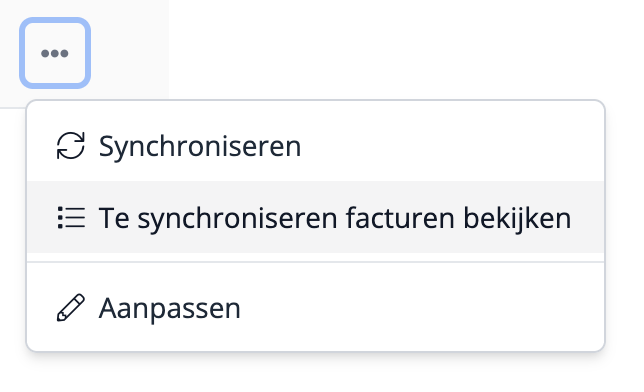
Overview of invoices ready to synchronize with Exact Online On which date does Flux book revenue?
That depends on the settings of the Exact Online integration. If revenue on treatment date is enabled, Flux books revenue on the treatment date of the invoice line. This means revenue matches the period in which the treatment took place, instead of the date on which you invoice.
There are two exceptions. If the treatment date is before the minimum booking date, Flux books on the minimum booking date. If an invoice line has no treatment date, Flux uses the invoice date.
How often is data synchronized?
That depends on the synchronization mode you configure. With automatic synchronization, Flux sends new invoices to Exact Online as soon as they are ready for processing. With manual synchronization, you decide when to process a period.
When setting up the integration for the first time, always check a limited period together with your bookkeeper or accountant. If the setup is correct, you can use automatic synchronization. Payment statuses from Exact Online come back into Flux once they have been processed.
How do I check the reconciliation with Exact Online?
Use a limited period to check the integration. Then compare with your bookkeeper or accountant whether invoices, corrections, sales journal, ledger accounts, deferred revenue postings and payment statuses in Exact Online match what you see in Flux.
What does the integration start date do?
The start date determines which invoices Flux includes in the Exact Online integration. Invoices with an invoice date before the start date are not sent automatically.
What does the minimum booking date do?
The minimum booking date determines which date Flux uses when the treatment date falls in a closed period. If the treatment date is before the minimum booking date, Flux uses the minimum booking date as the booking date. Consult your bookkeeper or accountant about which date to use around year-end closing.