Group appointments
Set up an appointment type for group appointments, and see how each participant is invoiced and claimed.Overview
A group appointment is one appointment in the calendar with several patients, such as a group training or an information session. Every patient in the group has their own appointment and pays in their own way: for example with a package, with a product or through their health insurer.
You plan a group appointment with an appointment type of the kind Group. You can only choose such an appointment type when you plan a group appointment, not for a regular appointment. The appointment type sets:
- the name of the group appointment,
- its colour in the calendar,
- how long a new group appointment lasts,
- how many patients can join at most, and
- how participants can pay.
How to plan a group appointment and how it looks in the calendar is explained in Group appointments in the calendar.
Create an appointment type for a group
Go to Settings → Appointment types by clicking the cog in the left menu and selecting Appointment types under Appointments.
- Click + Add new appointment type in the top right corner.
- Under Kind of appointment, choose Group.
- Under General, fill in:
- Appointment type name: the name of the group appointment, for example Medical fitness group.
- Duration: how long a new group appointment lasts, in minutes.
- Max. patients: how many patients can join the group at most. Practitioners don't count.
- Calendar colour and Medium.
- Under Billing per participant, switch on the ways participants can pay. You have to switch on at least one. See Billing per participant.
- If your practice invoices no-shows, choose the No-show product below it. See No-shows and cancellations.
- Optionally choose the Location and fill in Additional info for the email.
- Click Save.
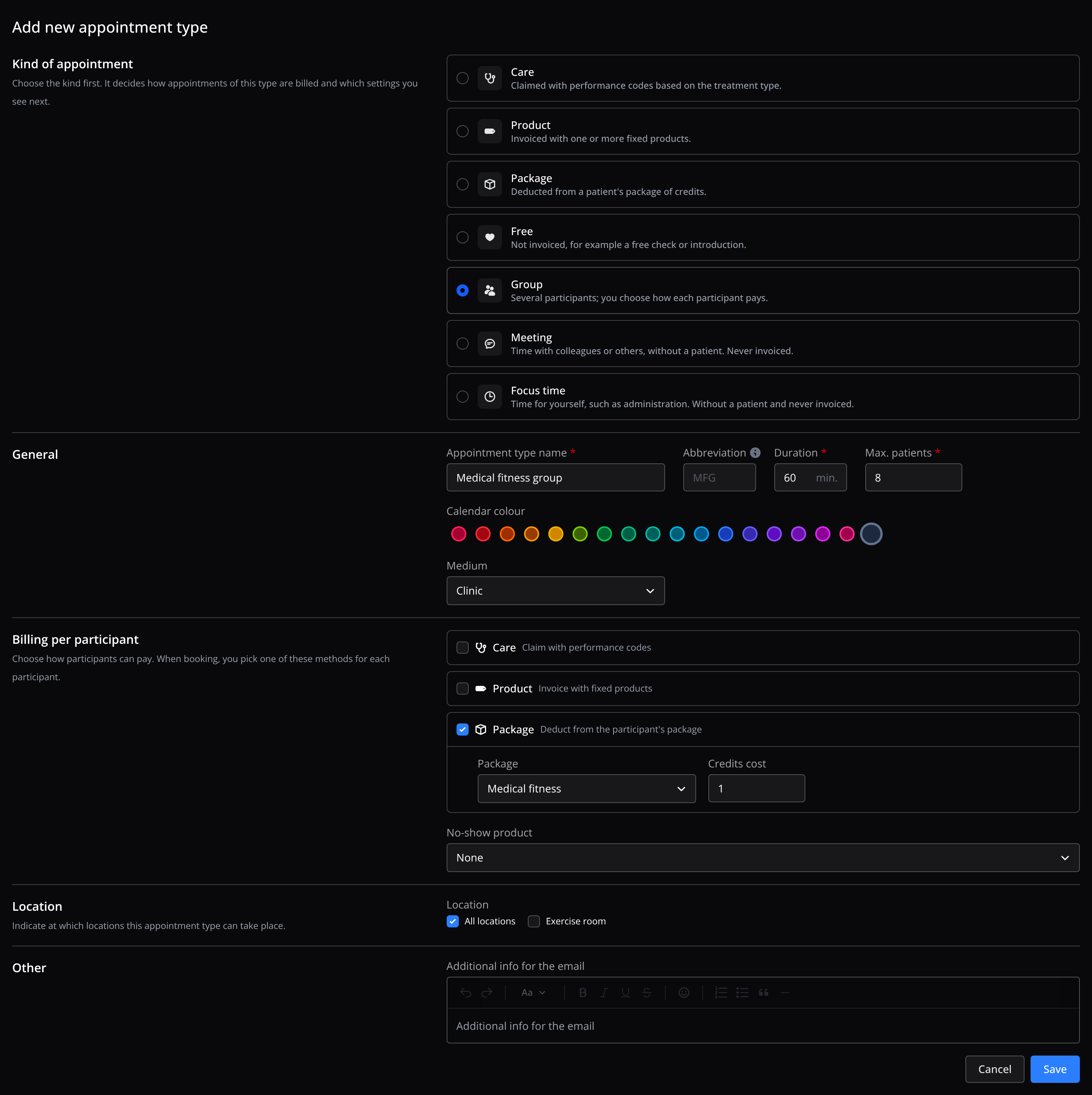
Billing per participant
Switch on one or more of these. A group appointment is never covered by a subscription. When you add a patient to a group appointment, you choose one of them.
- Care: claim with performance codes. Choose the Treatment type.
- Product: invoice with fixed products. Choose the Products.
- Package: deduct from the patient's package. Choose the Package, and under Credits cost how many credits the appointment costs.
What each way costs is explained in Invoicing and claims. This way, patients who pay differently can still join the same group. For example, a medical fitness group with patients who pay with credits from the Medical fitness package, and patients who pay through their health insurer.
Change the appointment type
In the list of appointment types, click the ellipsis (⋯) next to the appointment type and choose Edit. You can't change its kind.
Invoicing and claims
You create invoices as for other appointments: every patient in the group has their own appointment. How it's billed depends on the way you chose for that patient:
- Care: Flux claims the group treatment code that fits the number of patients in the group. Patients with the status Booked, Arrived or Fulfilled count. If there's only one patient in the group, it becomes a regular treatment. For disciplines without group codes, such as podiatry, every patient is claimed as a regular treatment. For this, the patient needs a treatment process in the group appointment.
- Product: the appointment is invoiced with the appointment type's products. If a product has its own performance code, that code is claimed instead of the group code.
- Package: credits are deducted from the patient's package, as many as set under Credits cost.
If you claim per unit of time, as in dietetics or occupational therapy, the full duration of the group counts for every patient.
Practitioner on the claim
If the group appointment has one practitioner, that practitioner is on the invoice and the claim, or their supervisor if they have one. If the group appointment has several practitioners, one of them is on it. Which one isn't fixed. If you need to know who will be on the claim, plan one practitioner per group appointment.
In reports, a patient's revenue is split equally over all practitioners of the group appointment.
No-shows and cancellations
If you set a patient to No-show (see Change a patient's status), it's invoiced with the appointment type's No-show product, however the patient pays. That only happens if your practice invoices no-shows, and only if the appointment type has a no-show product; otherwise nothing is invoiced. A no-show is never claimed as care, and with a package no credit is used. A reserved credit is released.
If you remove a patient from the group by setting them to Cancelled, or cancel the group appointment, the patient isn't charged. Reserved credits are released then too.
An invoice that was already created isn't credited automatically.