Contracts
Manage all your contracts with health insurers.Overview
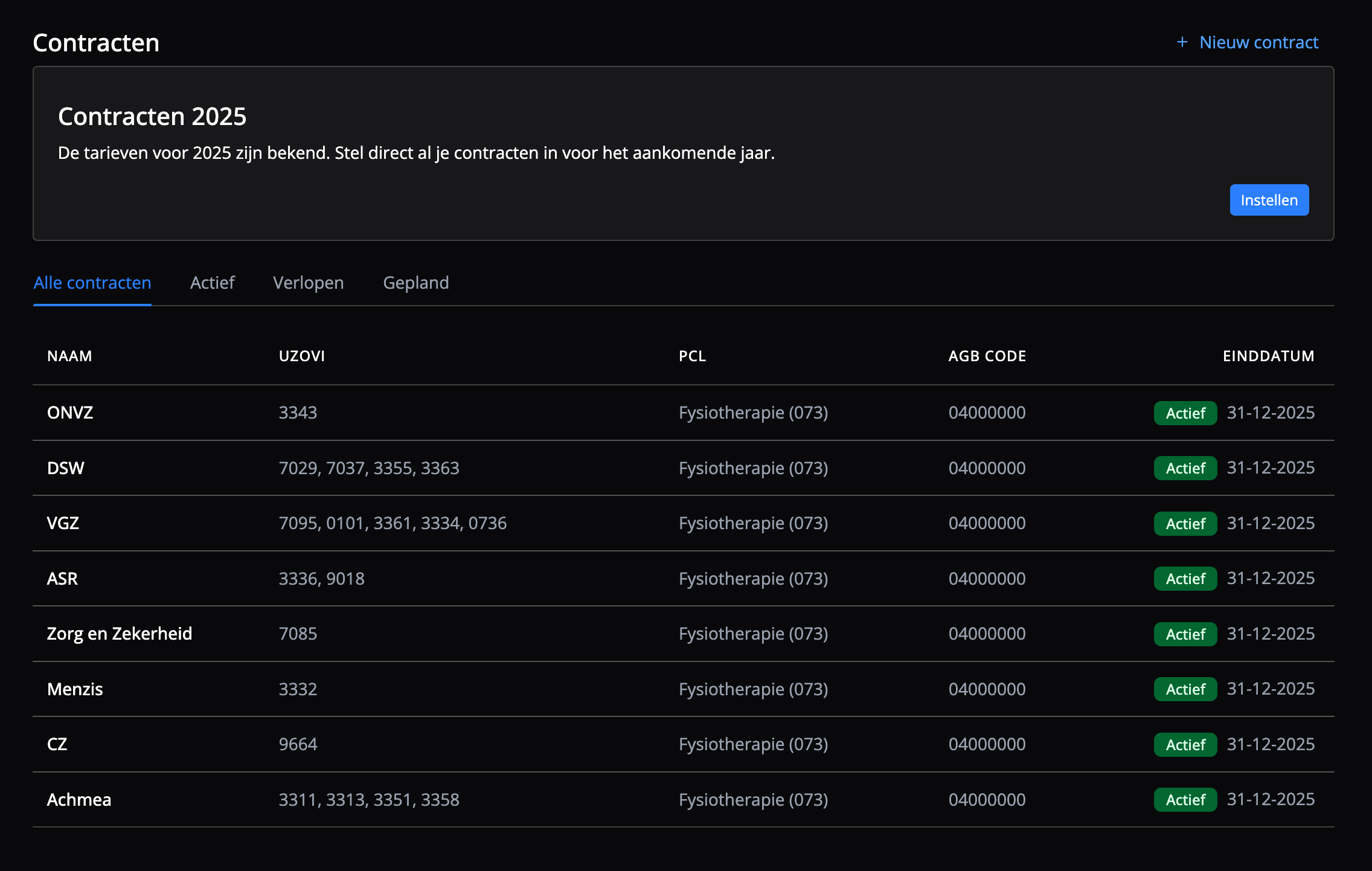
In Flux, you manage all the contracts your care organisation has agreed with health insurers. These contracts are the basis for claiming care correctly from the right health insurer.
Contracts are agreed through VECOZO, where you enter into an agreement with the purchasing groups of the various health insurers. Each group covers several labels, which are the specific health insurers. Patients take out their health insurance with one of these labels. Your contract therefore decides which care you can claim from that insurer.
A contract in Flux holds all the details needed to claim care, such as AGB codes, performance codes and rates. This keeps the process streamlined, prevents mistakes in claims and keeps your contracts clear and reliable.
Contracts
To add, change or delete contracts, go to Settings → Invoices → Contracts: click the cog in the left menu and select Contracts.
Administrators can create, change and delete contracts. A contract in Flux records the following details:
- Purchasing group
- Contract
- AGB code
- Declarant AGB number
- Insurers (labels)
- Debtor risk
- Performance codes with their rates
Contract status
Each contract implicitly has one of the following statuses:
- Active: the contract is in use. You can submit claims based on this contract.
- Expired: the contract is no longer valid. Claims can no longer be processed through this contract. Care provided while an expired contract was running can still be claimed through that contract.
- Planned: the contract has been created but is not active yet. It becomes active automatically in the future.
The status of a contract helps you keep track of current, future and expired contracts.
Add a contract
You can add a contract in Flux in different ways. You can create contracts by hand, or add them automatically from our standard contracts.
Manually
To add a contract by hand:
- Click New contract in the top right corner
- Select or fill in the contract information:
- Purchasing group
- Contract
- AGB code
- Declarant AGB number
- Insurers (labels)
- Debtor risk
- Add the performance codes and their rates from your own contract:
- Click More to enter a start and/or end date per performance code
- Click Create
The contract has been created. You can now claim care provided to patients insured with a label.
Automatically
To add a contract automatically:
- Click New contract in the top right corner
- Select a standard contract
- Click Use template
The contract has been created. You can now claim care provided to patients insured with a label. Do check the standard contract, and change its rates where needed.
Change a contract
To change a contract:
- Select the contract
- Click the pencil in the top right corner
- Change the contract
- Click Update
The contract has been changed. Changes to a contract take effect immediately.
Contract details
A contract in Flux covers:
- The agreement with a health insurer, including details such as rates and performance codes.
- Everything needed to claim care through VECOZO, such as AGB codes and declarant numbers.
- Specific agreements with the health insurer, such as the debtor risk.
Physiotherapy contracts are usually agreed again every year, in line with the contracting cycle of most health insurers. Flux can record several contract periods, so the right contract always applies when you claim care. You can find more about the contracting process for physiotherapy on the KNGF website (in Dutch).
Purchasing group
The insurance group the agreement was made with.
Contract
The name of the contract. The contract details are linked to it, such as the term and conditions of the agreement.
AGB code
The AGB code of your organisation, also called the practice AGB code. This code is used when you submit claims.
Declarant AGB number
The personal AGB code of the user who agreed the contract in VECOZO on behalf of the organisation. This code is used when you submit claims.
Insurers
The labels that fall under the purchasing group: the specific health insurers that patients take out a policy with.
Debtor risk
The agreement on who bears the risk of unpaid claims. In most cases this is the care organisation itself, but in specific cases it is the purchasing group.
Delete a contract
To delete a contract:
- Select the contract
- Click the bin (delete) in the top right corner
- Click Delete in the window that opens
The contract has been deleted. This cannot be undone. If you want to use this contract again, you need to create it again.
Health insurer debtor number
If you want your bookkeeping to line up with Flux after a migration, you can give each health insurer its old, unique debtor number.
Go to Settings → Invoices → Debtor numbers. Add the debtor number you want for each UZOVI number for your financial administration. Flux includes these debtor numbers in your bookkeeping automatically.