Invoice settings
Set how Flux generates invoices, which rules they meet and what they look like.Overview
The invoice settings apply to the whole practice and are on two screens under 'Invoices' in the settings. On 'Auto generate', you set when Flux creates invoices from your appointments. On 'Rules and layout', you set what an invoice has to meet and what it looks like. Your practice details themselves, such as addresses, phone numbers and bank account numbers, are managed in the general settings.
Automatic invoicing
Flux creates invoices and claim lines from your appointments: manually, in bulk or automatically. A generated invoice is a draft that you can always change or delete. You then handle it further in the finance overview.
Go to Settings → Auto generate: click the cog in the left menu and choose 'Auto generate' under 'Invoices'. Switch the settings on or off and click 'Save'.
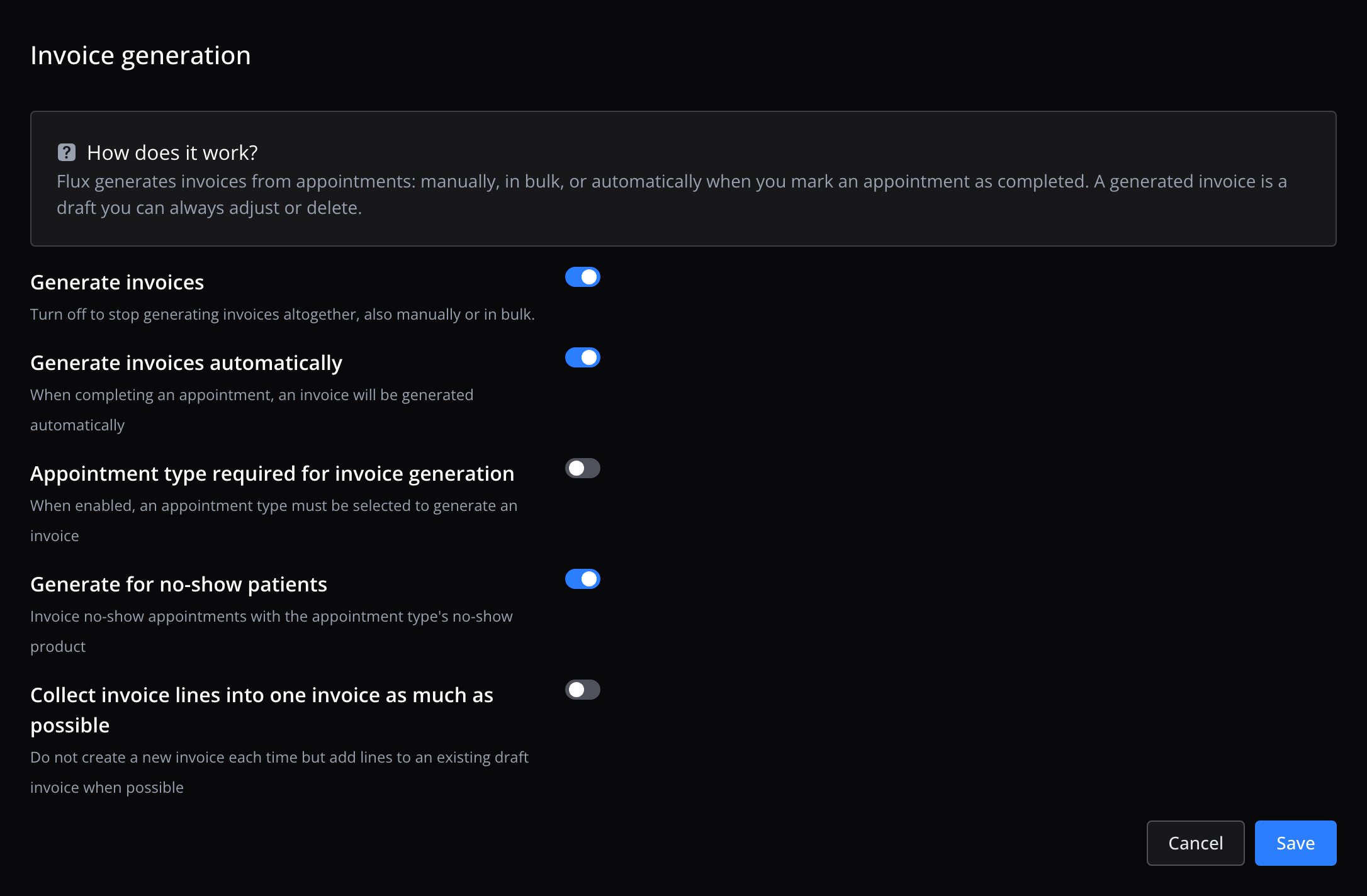
Generate invoices
'Generate invoices' switches invoice generation on or off altogether. With it off, Flux creates no invoices from appointments at all, not even manually or in bulk. You can't switch on the other settings on this screen then.
Generate invoices automatically
With 'Generate invoices automatically', Flux creates an invoice or claim line as soon as you set an appointment to Fulfilled. With this setting off, you generate invoices yourself.
Appointment type required for invoice generation
With this setting on, Flux only creates an invoice for an appointment that has an appointment type. An appointment without a type then gets no invoice.
Generate for no-show patients
With this setting, you invoice no-shows: when you set an appointment to No-show, the patient gets a draft invoice. A no-show is never claimed from the health insurer; the patient pays the invoice themselves.
To invoice no-shows:
- Switch on 'Generate for no-show patients' and click 'Save'. Keep Generate invoices automatically on as well; when it's off, you generate the invoice for a no-show yourself, as for other appointments.
- Set what a no-show costs. You can combine both:
- One rate for the practice: in Rates, create a rate for performance code 1960 (physiotherapy and exercise therapy) or 6200 (dietetics, occupational and speech therapy). Every no-show then costs the same.
- A product per appointment type: choose a No-show product for the appointment type (from Flux Clinic), such as a higher amount for an intake. This product takes precedence over the rate.
- Set an appointment to No-show. Flux creates a draft invoice for the patient, which you find in the finance overview.
Not every no-show gets an invoice:
- Appointments of the kind Free are never invoiced.
- If the patient pays for the appointment with a package, a no-show is only invoiced when the appointment type has a no-show product.
- In a group appointment, a no-show is only invoiced with the no-show product.
Invoice only some no-shows
Flux doesn't count how often a patient hasn't turned up: every no-show gets a draft invoice. To invoice only patients who miss appointments repeatedly, delete the draft invoice of a patient you don't want to invoice. You find the draft invoices in the finance overview.
Charge part of the treatment
Flux doesn't calculate a no-show as a percentage of the planned treatment. To charge half of the regular rate, for example, create a product with that amount and choose it as the no-show product of the appointment type. If appointment types have different rates, create a product for each rate. If you switch on 'Price is hourly rate' for the product, the amount follows the length of the appointment: with an hourly rate of € 40, a no-show for a 30-minute appointment costs € 20.
Collect invoice lines into one invoice as much as possible
Instead of creating a new invoice for every appointment, Flux adds the line to an existing draft invoice where it can.
Invoice rules
Go to Settings → Rules and layout: click the cog in the left menu and choose 'Rules and layout' under 'Invoices'. The following settings are under 'Rules'. Change them and click 'Save'.
Required fields
Health insurers set requirements for a care invoice, laid down by Vektis. If an invoice doesn't meet them, an insurer doesn't have to reimburse it. Tick the details an invoice must contain:
- BSN (citizen service number)
- Date of birth
- Diagnosis code / Treatment process
- Insurance
- Appointment: applies to claims to the health insurer.
If a ticked detail is missing, you can't finalise the invoice. The patient also shows a notice that details are missing.
Expiry date
The number of days between the invoice date and the due date. You can still change the due date on each invoice.
Direct debit term limit
The number of days between sending the invoice and collecting the direct debit.
Invoice user
Which user appears on the invoice first: 'Default', or the 'Main therapist of the treatment process'.
Default user
The user on the invoice when Flux can't assign a practitioner: on a subscription invoice, and on a product invoice when the person creating it isn't a practitioner. You can create a general user for this.
Send subscription invoices
The number of days between the start of a subscription period and sending the invoice for that period. You only see this setting if your practice uses subscriptions.
Invoice layout
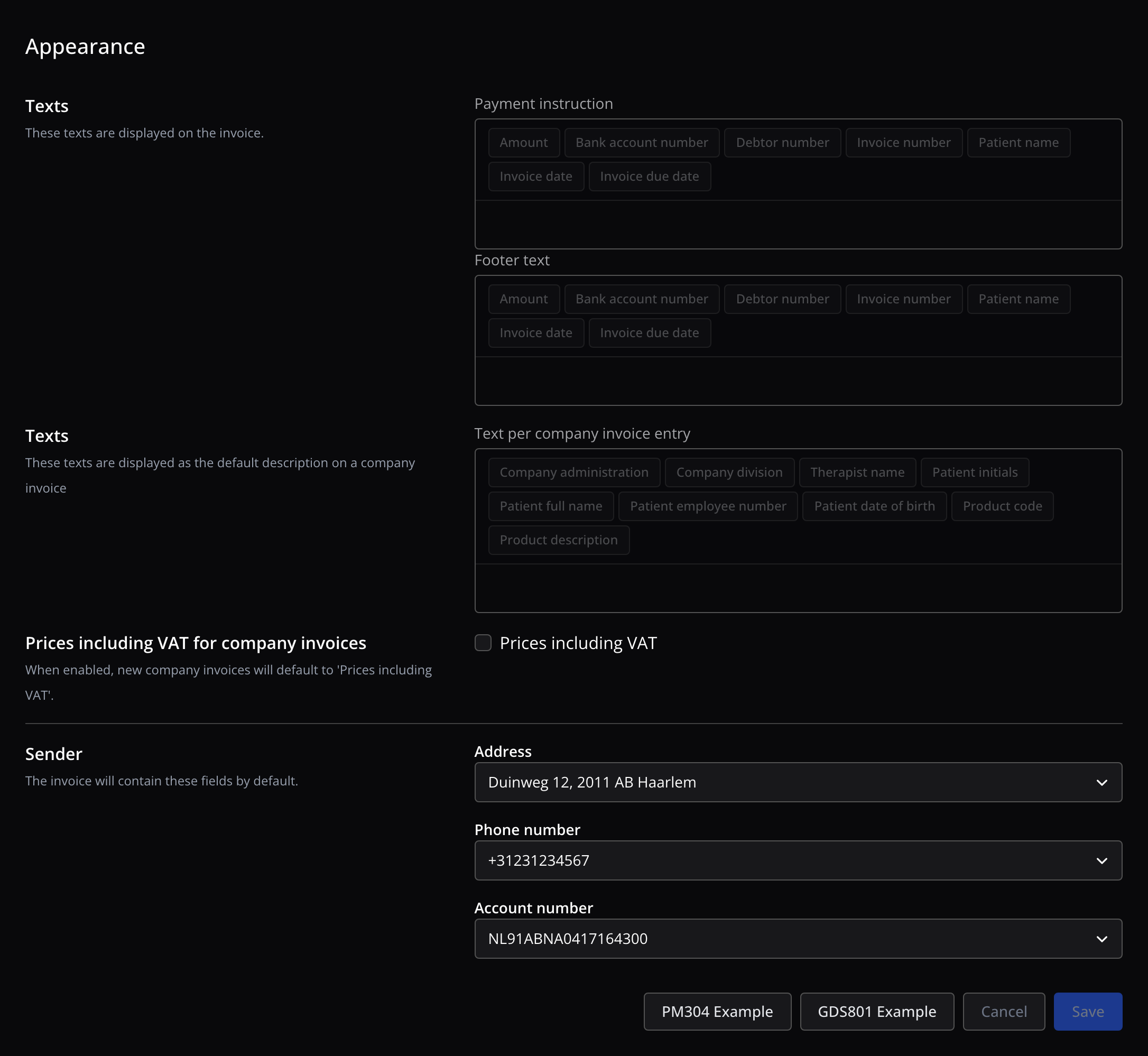
Under 'Appearance' on the same screen, you set how your invoices look to patients, companies and insurers. Here, too, you click 'Save' after a change. Most of the layout is fixed to meet legal requirements and those of Vektis. With 'PM304 Example' and 'GDS801 Example', you see an invoice with your settings in both invoice formats.
Texts
The 'Payment instruction' and 'Footer text' appear on every invoice. With the buttons above the text box, you add details that Flux fills in for each invoice: Amount, Bank account number, Debtor number, Invoice number, Patient name, Invoice date and Invoice due date.
For company invoices, you set the 'Text per company invoice entry' below: the default description of each line. There, too, you add details with the buttons, such as the patient's name or the product code. If you switch on 'Prices including VAT for company invoices', new company invoices default to 'Prices including VAT'.
Sender
Choose which address, phone number and account number appear on the invoice. You choose from the details in the general settings, where you also add or change them.
Logo
You set the invoice logo under Settings → Logos.
Professional associations
For invoices for alternative care to be reimbursed, you may need to be a member of a professional association. The association's logo, and your membership number if you have one, then appear at the bottom of the invoice.
Flux keeps the list of professional associations and their logos itself. You only add the membership to the user.
The association's logo isn't on the invoice
Check the following:
- Is the invoice new? Existing invoices aren't changed: the logo only appears on new invoices.
- Is an appointment linked to the invoice? You can check this on the patient's 'Finance' tab. An invoice that Flux generated always has a linked appointment.
- Is the practitioner of the appointment a member of the association? If not, the logo doesn't appear.
- Does the appointment type belong to the association's kind of care? If Flux doesn't recognise it as that kind of care, the logo doesn't appear.