New appointment card
Between two patients you want to move an appointment or add a note quickly, without it costing you time. That is what the new appointment card is made for. You click an appointment, change what you need and click away. Flux saves your changes straight away: you no longer need a save button.
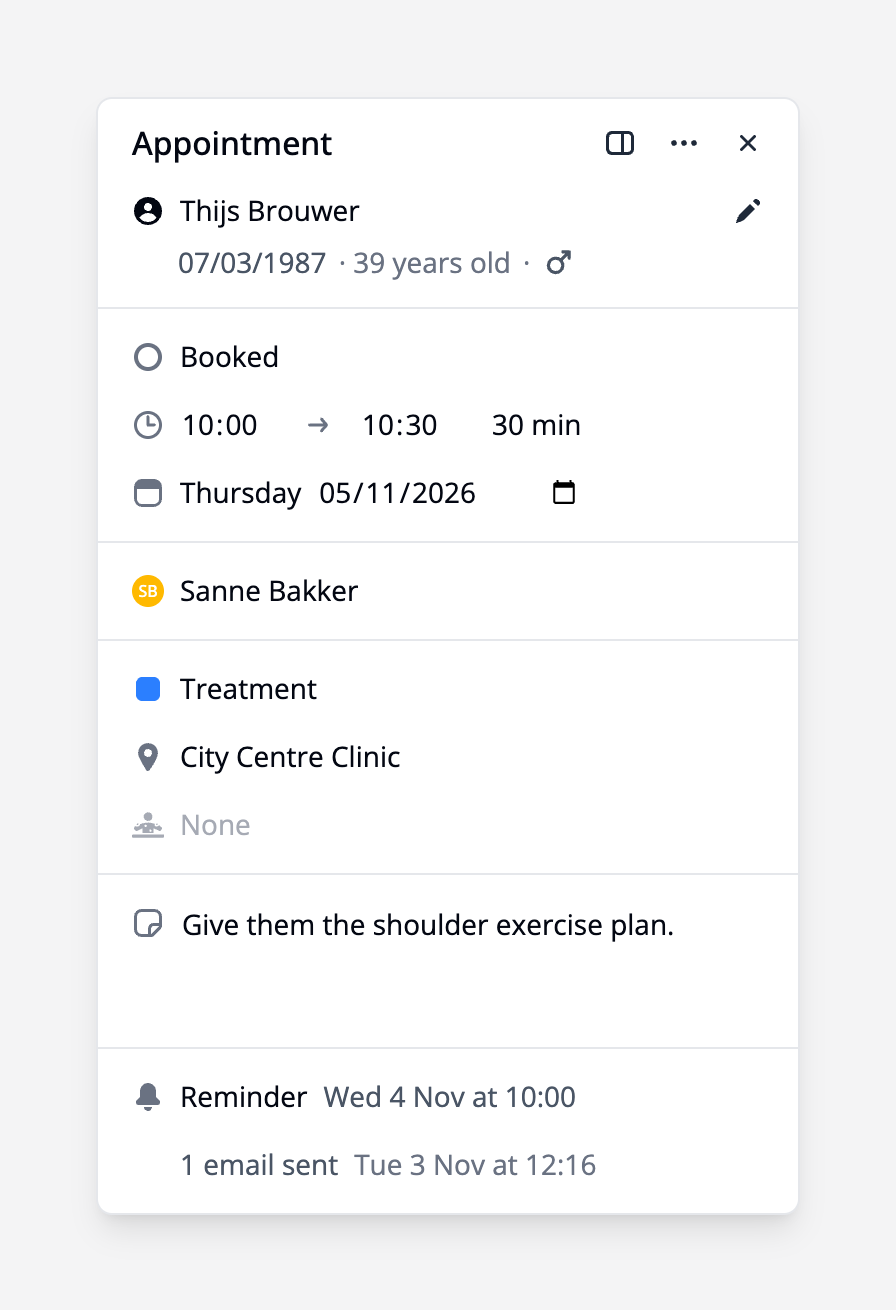
Click, change, done
The card opens next to the appointment, with everything in one column: the patient, the time, the practitioner, the type and location, your notes and the emails the patient gets. You change everything right in the card. When you're done, click anywhere else in the calendar, press Esc or click the cross to close it. The card disappears at once and Flux saves in the background, without you waiting for a loading spinner. That way you work through one appointment after another.
Nothing gets lost
If a save ever fails, Flux tells you and you choose whether to try again or discard your changes. If the appointment doesn't have a practitioner yet, Flux asks whether you want to add one first. Changed something you didn't mean to? Choose 'Undo changes' in the ⋯ menu before you close the card.
Series and reminders
If the appointment is part of a series, the arrows in the card take you through the previous and next appointments. At the bottom you see when the patient gets a reminder. Don't need it? Switch it off with the cross, and back on with the plus. Hover over the sent emails to see what the patient has already received.
See straight away whether it fits
While you plan, the card keeps an eye on whether the appointment fits. If it overlaps another appointment, the practitioner isn't available at that time or location, or the patient already has an appointment that day, you see it right in the card. The same goes for a missing appointment type or a warning on one of the patient's labels. Every notice also tells you what you can do about it, like picking another time or practitioner. That way you sort it out before the patient is at the desk.
All details
Want to see more, like the insurance or the activity on the appointment? Open 'All details' at the top right of the card. There you also choose whether an appointment without a patient is 'Public' or 'Private'. If you prefer working with the side panel open, an appointment opens straight there, with a button to save. And from the ⋯ menu, or with ⌘ + D, you can duplicate an appointment.
Everything about the appointment card is in the Calendar manual.