Notes in the calendar
A calendar holds more than appointments with patients. A team meeting, an afternoon off, a reminder to call someone back: until now, you put those in Flux as an appointment without a type. From now on, you make it a note.
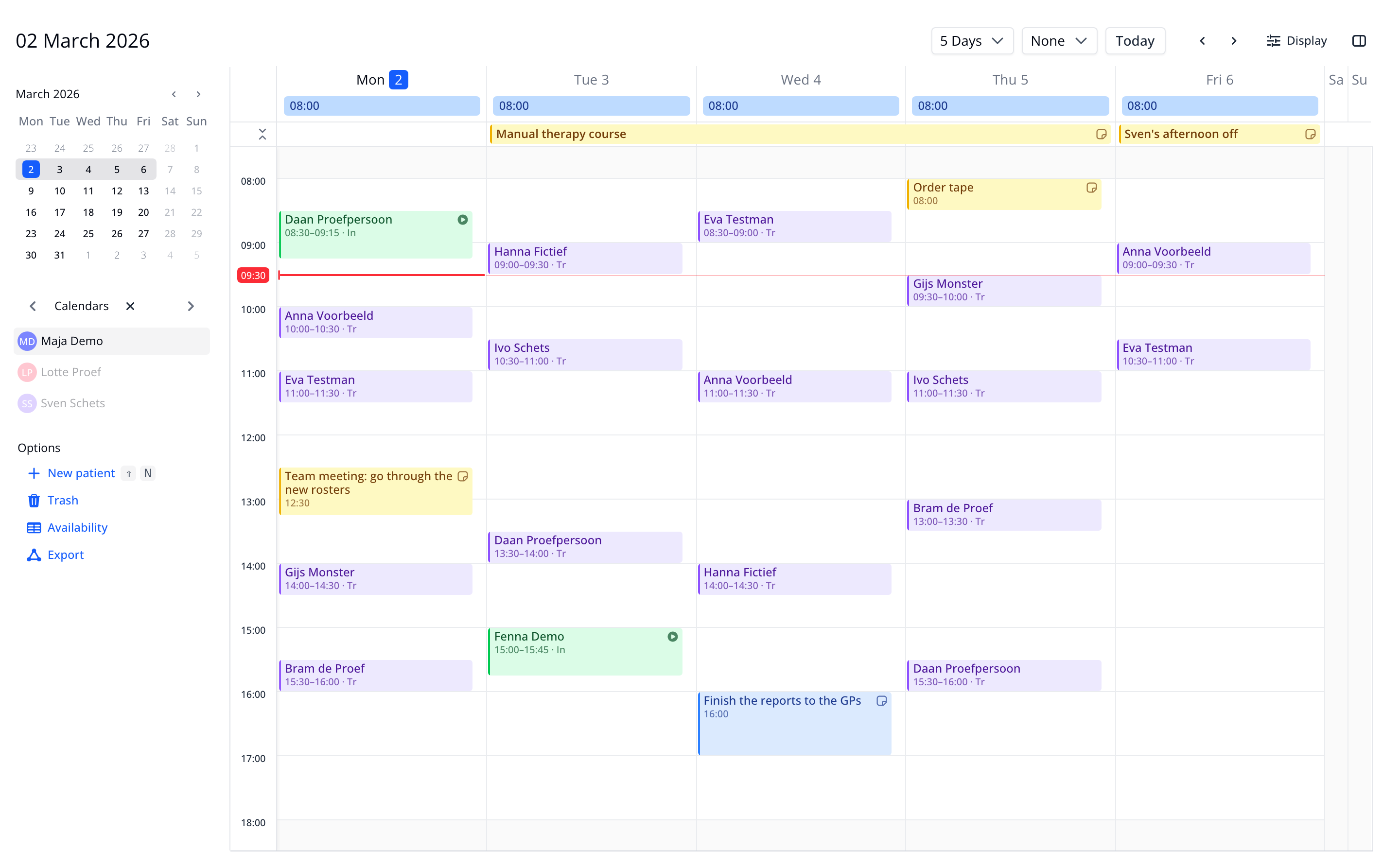
Create a note in seconds
Click or drag in the calendar as you would for an appointment and choose 'Note' at the top of the card. Or hold your pointer over the calendar and press N. Type your text, formatted if you like, and close the card: the note is in. Notes are yellow by default, like a sticky note, and you read their text right on the calendar.
For an hour, a day or a whole week
A note sits at a time or runs across whole days, for a course or a holiday for example. Notes for whole days sit in the bar above the calendar. Dragging, making a note longer or shorter, cutting, copying and pasting work as they do for appointments.
On the whole team's calendar
A note can be on several colleagues' calendars. Put a team meeting on everyone's calendar at once, or move a note to a colleague's calendar.
In the color you want
Everyone picks their own note color in their calendar settings. Should one note stand out? Give that note a color of its own, which everyone sees.
Nothing gets lost
Every note shows who created, changed or moved it, and when. Deleted one by mistake? Click 'Undo', or restore the note later from the Trash.
Good to know
A note does not block time: patients can still book an appointment at that time through online scheduling. To keep time free, change your availability.
Everything about notes is in the Notes manual.
New (5)
- Notes in the calendar, at a time or for whole days
- Notes on several colleagues' calendars
- A color per note, and your own note color in your calendar settings
- Shortcut N to create a note
- Deleted notes in the Trash, ready to restore
Improvements (5)
- A new appointment already looks like a real appointment while you create it, in its appointment type's color
- The side panel shows an appointment with its title and close button, and Save stays in view at the bottom
- An appointment's quick card gets more room and may overlap the bar for whole days
- Short appointments are easier to read: the handle for changing their length no longer covers their text
- Emoji show in your own device's colors everywhere